


Compare Views: Side by Side, Overlay, Blink and Heatmap
Compare Versions can show the differences between two versions in four ways. Switch between them with the buttons in the bar above the content. The Changes list stays the same in every view.
Side by side
The older version is on the left and the newer one on the right. Every change is marked on both.
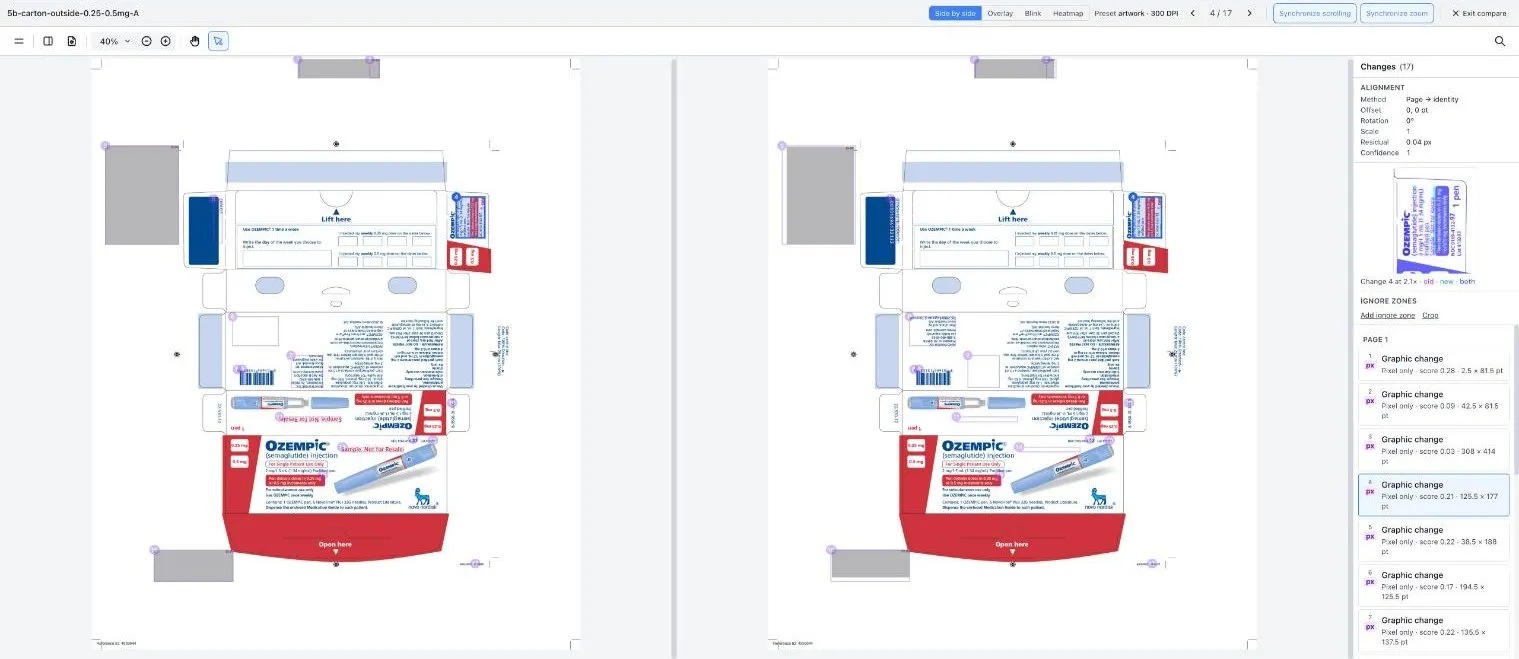
Use it when you want to read both versions in full. This is the view Compare opens in.
Overlay
The two versions are laid on top of each other on one page. Where they match you see one clean image. Where they differ, the old and new are tinted different colours, so anything that moved or changed stands out.
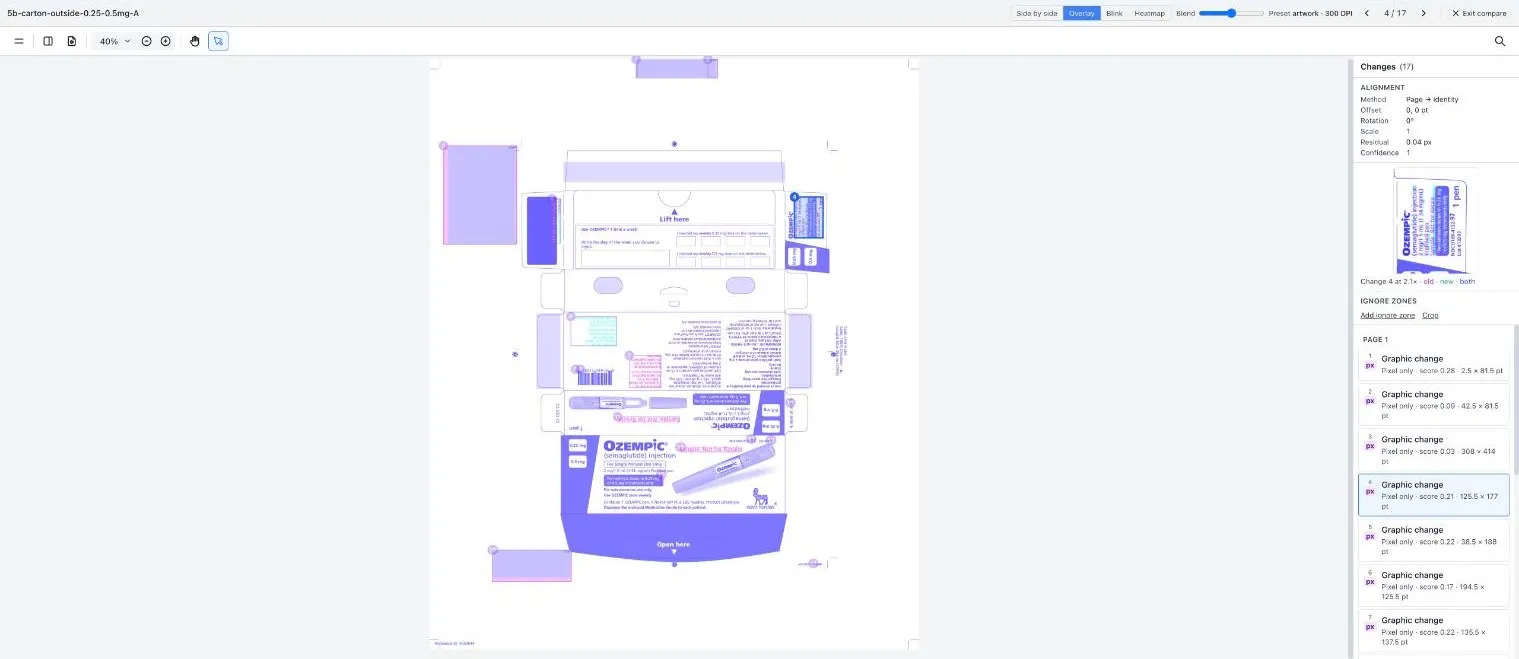
Use the Blend slider to fade between the old version and the new one.
Use it to check position: whether a logo, a panel or a line of text has shifted.
Blink
One page switches back and forth between the old version and the new one. Anything that changed appears to flicker, and everything else holds still.
- Click Hold to stop on the version showing.
- Click the A / B button to switch by hand.
Use it for small changes that are hard to spot when the versions sit next to each other.
Heatmap
The page is faded back and every difference is coloured in. Stronger colour means a bigger difference.
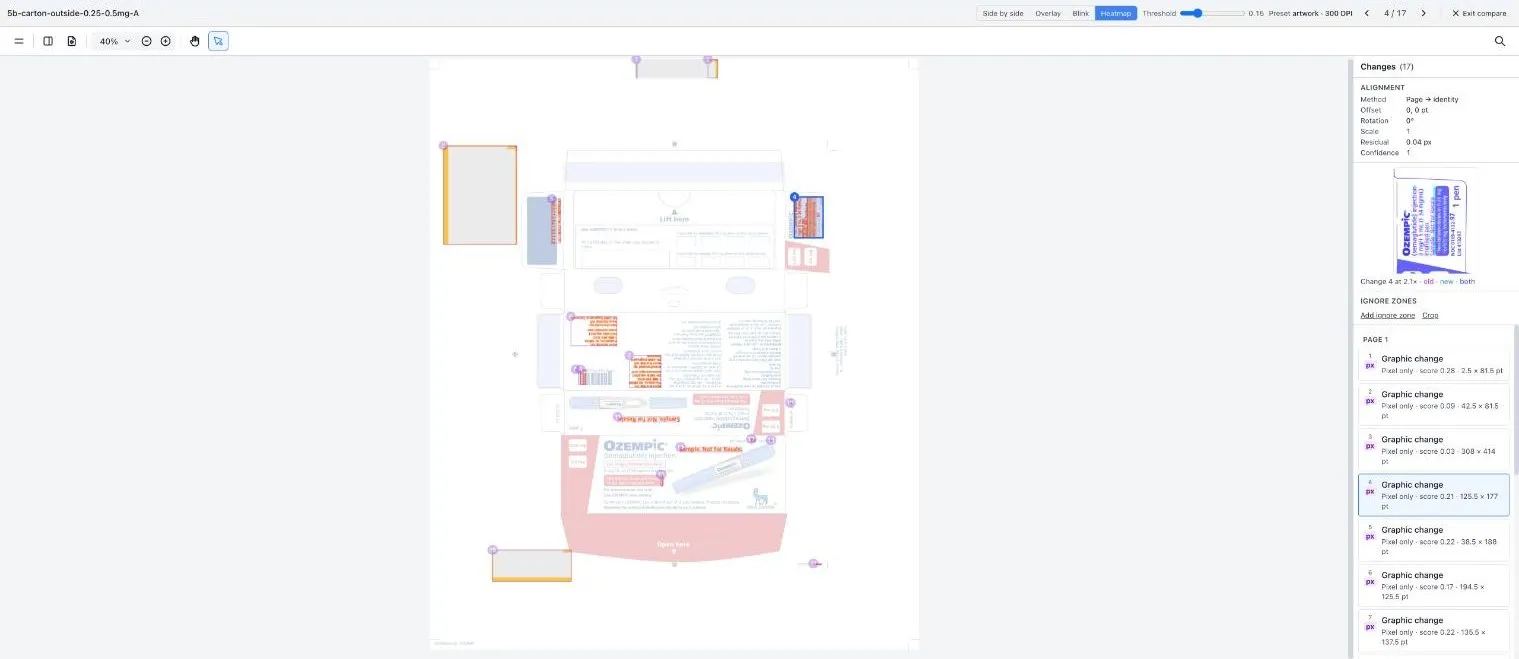
Use the Threshold slider to choose how small a difference is shown. Slide it down to see fainter differences, or up to hide them.
Use it for a quick overview of where a busy piece has changed before you go through the list.
Good to know
- Overlay, Blink and Heatmap show one page at a time. Side by side shows both.
- The arrows and the Changes list work the same way in every view.
- Moving the Threshold slider changes what is listed as a change, so the count at the top of the list can go up or down.
Still have questions?
Chat
9am – 5pm Eastern Time, by clicking the icon in the bottom right corner of the screen.