


Paige Review - FDA Promotion Rules
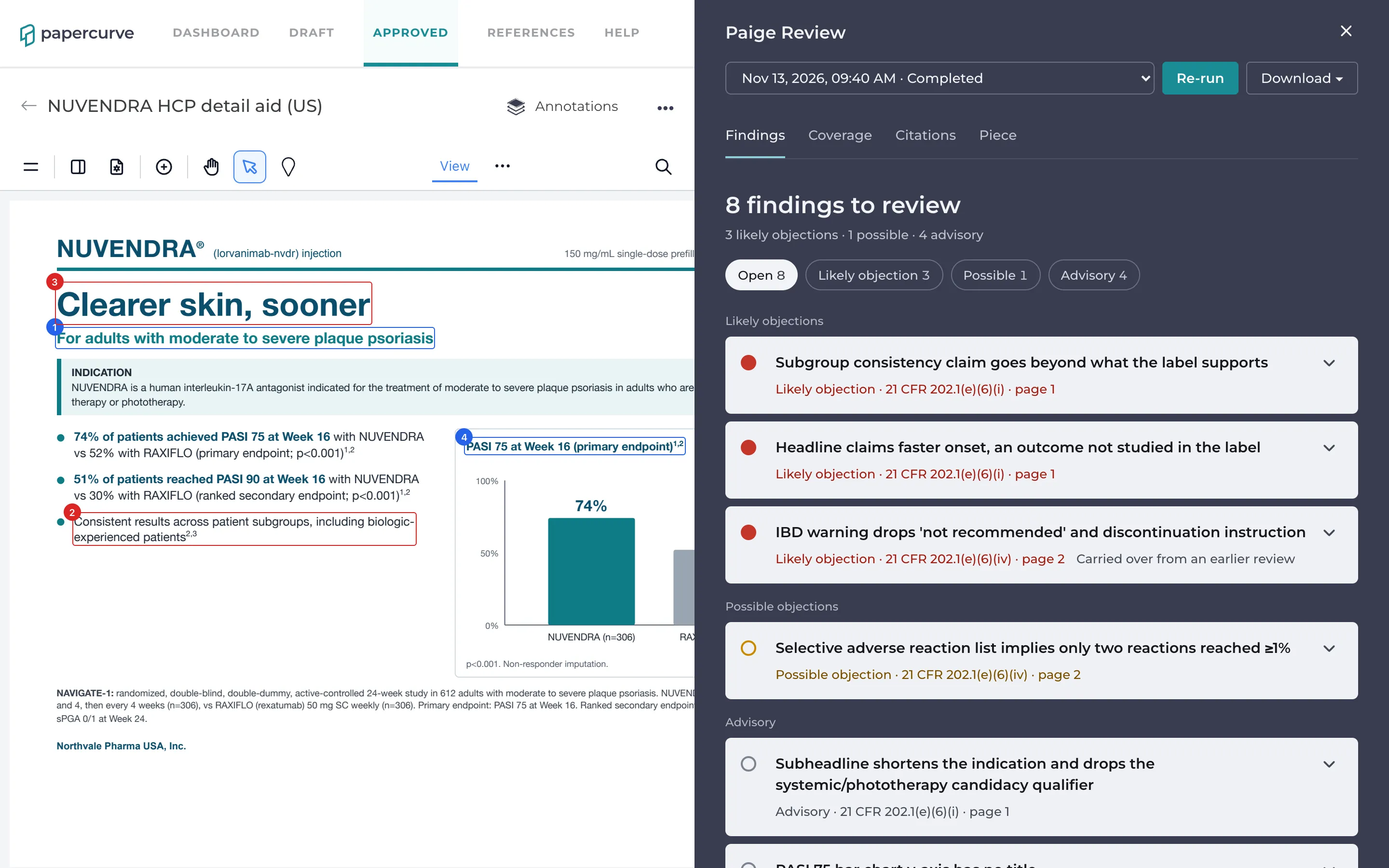
Paige Review - FDA Promotion Rules checks a US promotional piece against FDA’s promotion rules before it goes to your review committee. It checks claims against the product’s Prescribing Information, looks for risk information that is missing, minimized or less prominent than the benefits, and flags efficacy claims the evidence doesn’t carry. Each finding cites the regulation it relates to, for example 21 CFR 202.1(e)(6)(i), and is marked on the page.
For the full list of rules, with their citations and the FDA guidance behind them, see What Paige Checks. For common questions, including how it relates to OPDP, see Questions and Answers.
Paige Review is an assistant. It helps your team find problems early. It isn’t an FDA or OPDP opinion, and it doesn’t approve or release content: your reviewers still decide.
Before you start
Paige Review is switched on per library, and each library uses one rulebook. A library for US promotional content uses Paige Review - FDA Promotion Rules. To have it switched on for a library, contact Papercurve support.
Paige reviews prescription drug and biologic pieces for health care professionals and for consumers, in print and electronic form (PDFs, and anything Papercurve turns into a PDF, such as Word, PowerPoint and image files). It reviews pieces in English, in Spanish, and bilingual pieces with both. It doesn’t review video, audio or broadcast, and it doesn’t cover vaccines and blood products, devices, or over-the-counter products.
Set up your products
Paige checks a piece against the Prescribing Information of the product it promotes, so each product needs its Prescribing Information in Papercurve.
- An admin opens Products in the workspace settings and adds the product, or opens it.
- Under US registration, enter the application type (NDA, ANDA or BLA), the application number and the dosage form, then click Save registration.
- Under Prescribing Information, link the product’s Prescribing Information document. Paige reads it into a product card: the indications, limitations of use, boxed warning, contraindications, warnings and precautions, dosage and so on, each with the words of the label beside it.
- Open the product card, check each fact against the label, correct anything wrong, and click Verify product card.
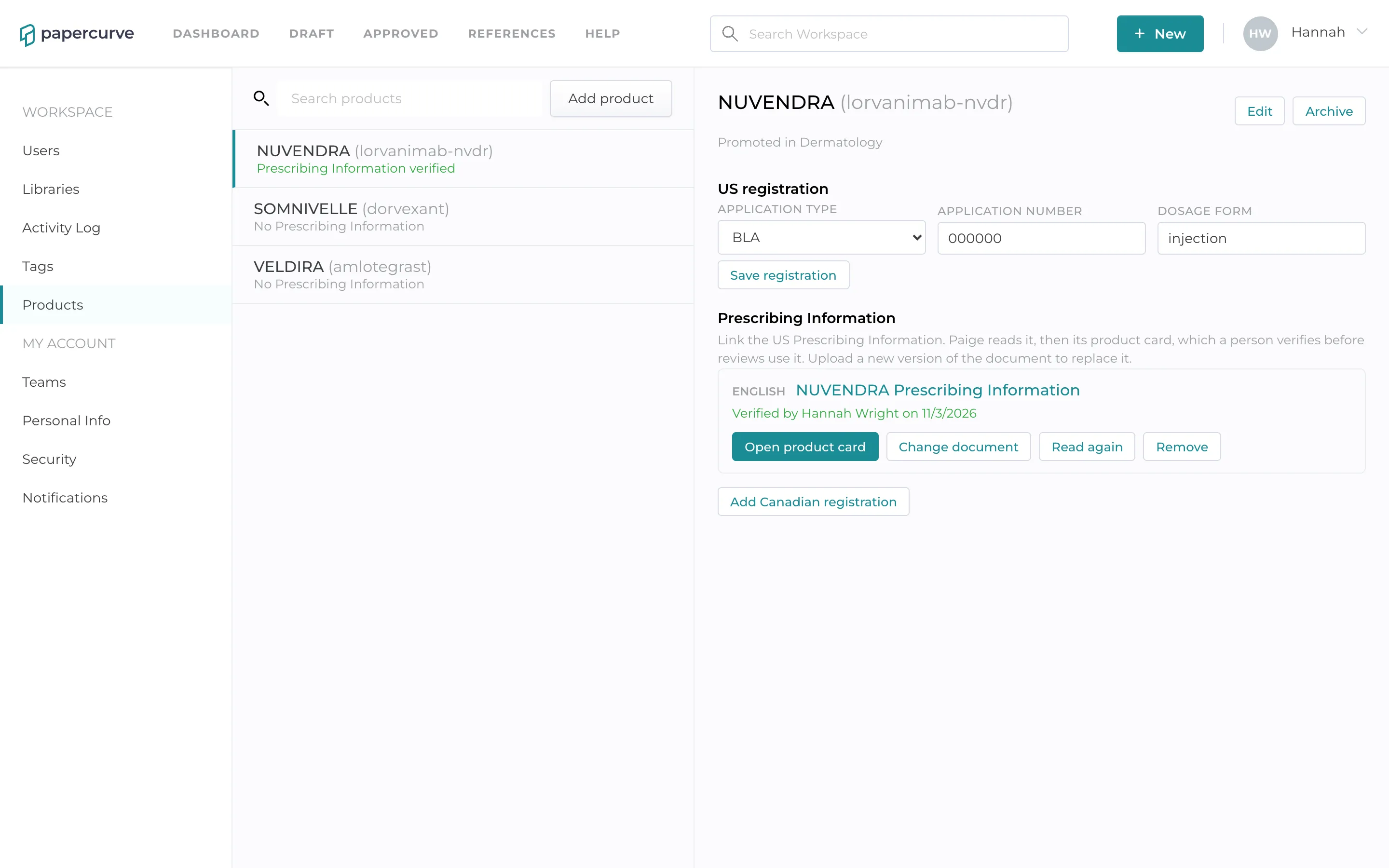
Until a product card is verified, the checks that rely on the Prescribing Information wait for it, and the review says so. When the label changes, upload a new version of the Prescribing Information document: Paige reads it again, and the card needs to be verified again.
Keep the studies your pieces cite in Papercurve as reference documents. Paige can only check that a cited study supports a claim when the study is there.
Run a review
Paige reviews every piece in the library automatically once Papercurve has processed the file, and again on every new version. A review takes a few minutes. Anyone who can open the piece can also click Re-run at the top of the panel.
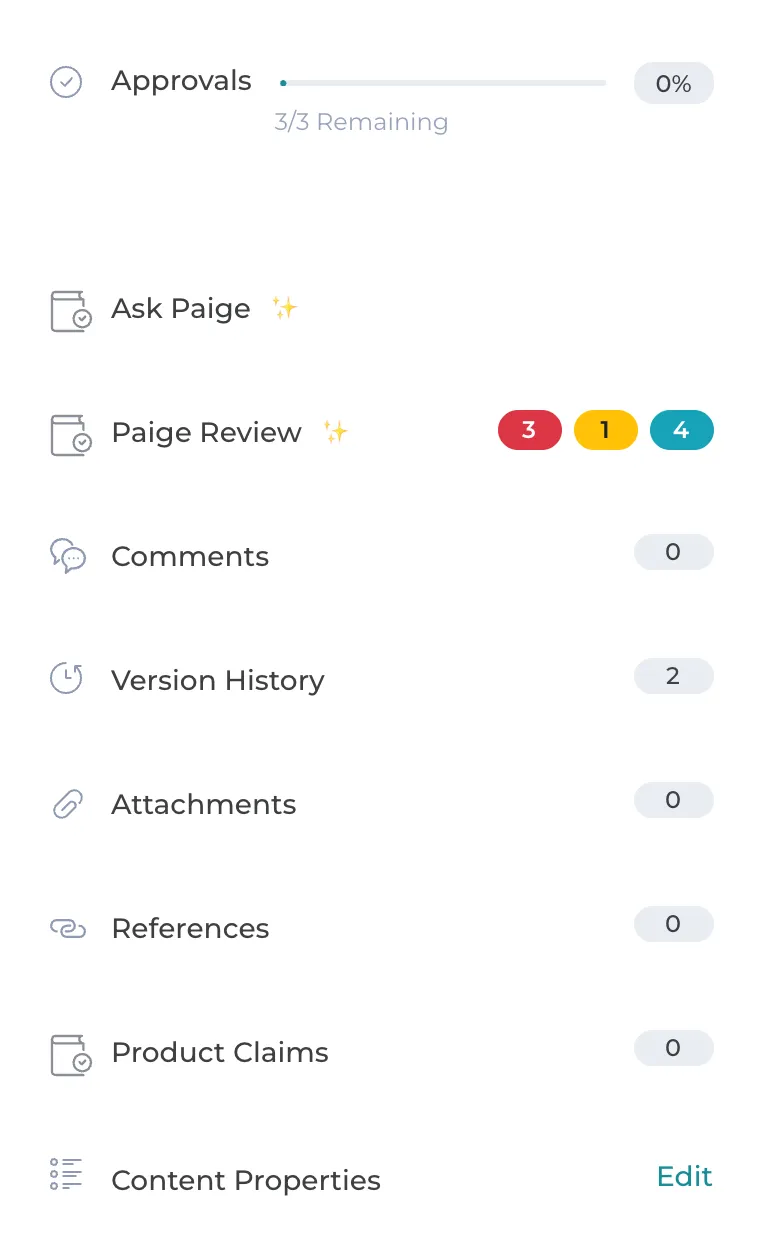
To see the review, open the piece and click Paige Review in the side panel. The counts beside it show the open findings by severity.
Check what Paige reviewed it as
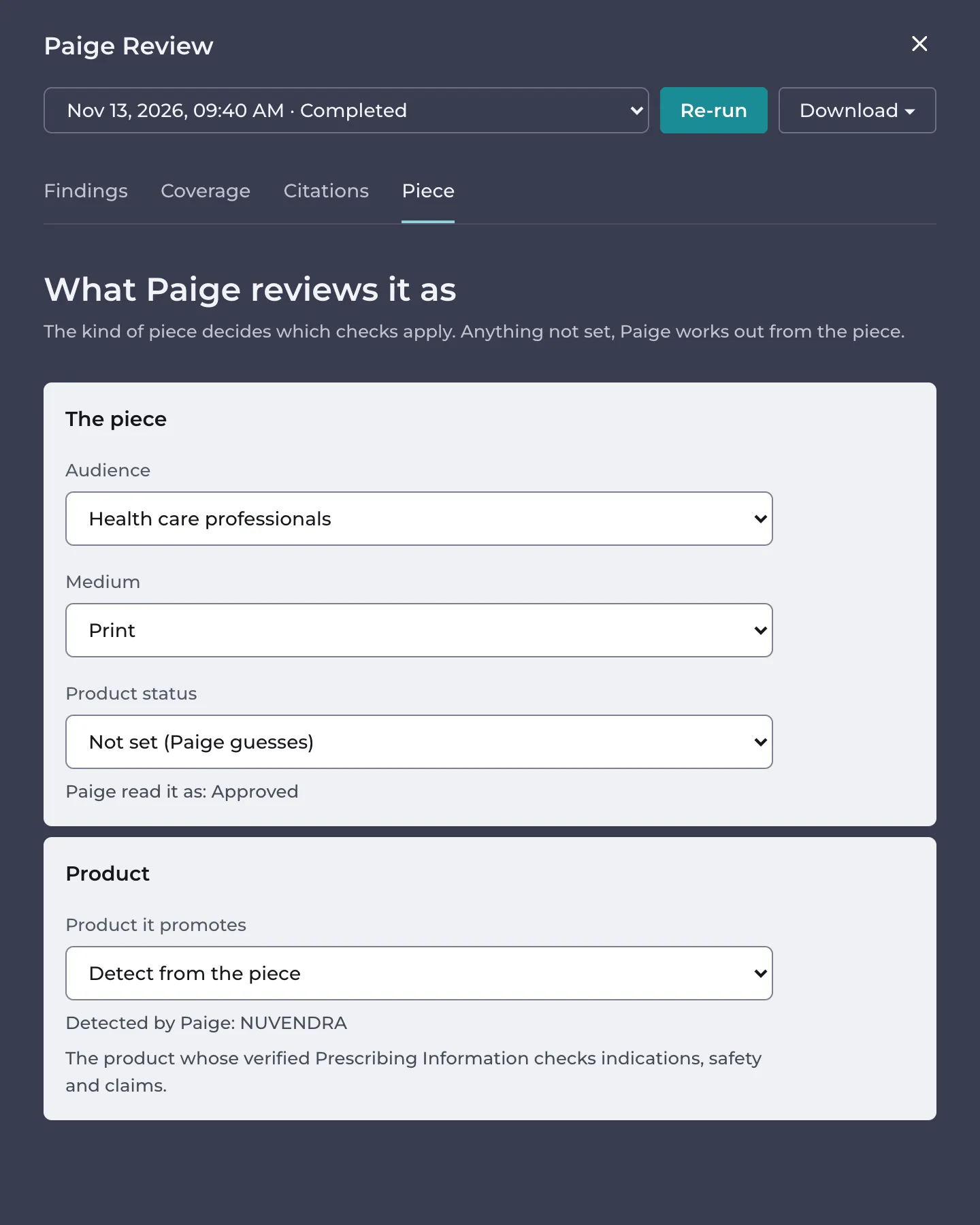
The Piece tab shows what Paige took the piece to be: its audience (health care professionals or consumers), its medium (print or electronic), whether the product is approved or investigational, and the product it promotes. These decide which checks apply. Paige works out anything not set; if it guessed wrong, choose the right value and click Re-run.
Read the findings
The Findings tab lists every problem Paige found, grouped by severity and in page order. Each finding is outlined on the page in the colour of its severity; click it in the list to go to it.
- Likely objection (red): a clear problem under the rule it cites. Fix it, or have a clear reason it’s acceptable, before the piece goes out.
- Possible objection (amber): may be a problem, depending on context Paige can’t fully judge. A reviewer should decide.
- Advisory (grey): a point to check or a good-practice note. Look at it, but it isn’t an objection on its own.
Open a finding to read what Paige found and why. When the finding rests on the label, it quotes the Prescribing Information passage, with a link to its page. Also raised under lists other regulations that apply to the same words.
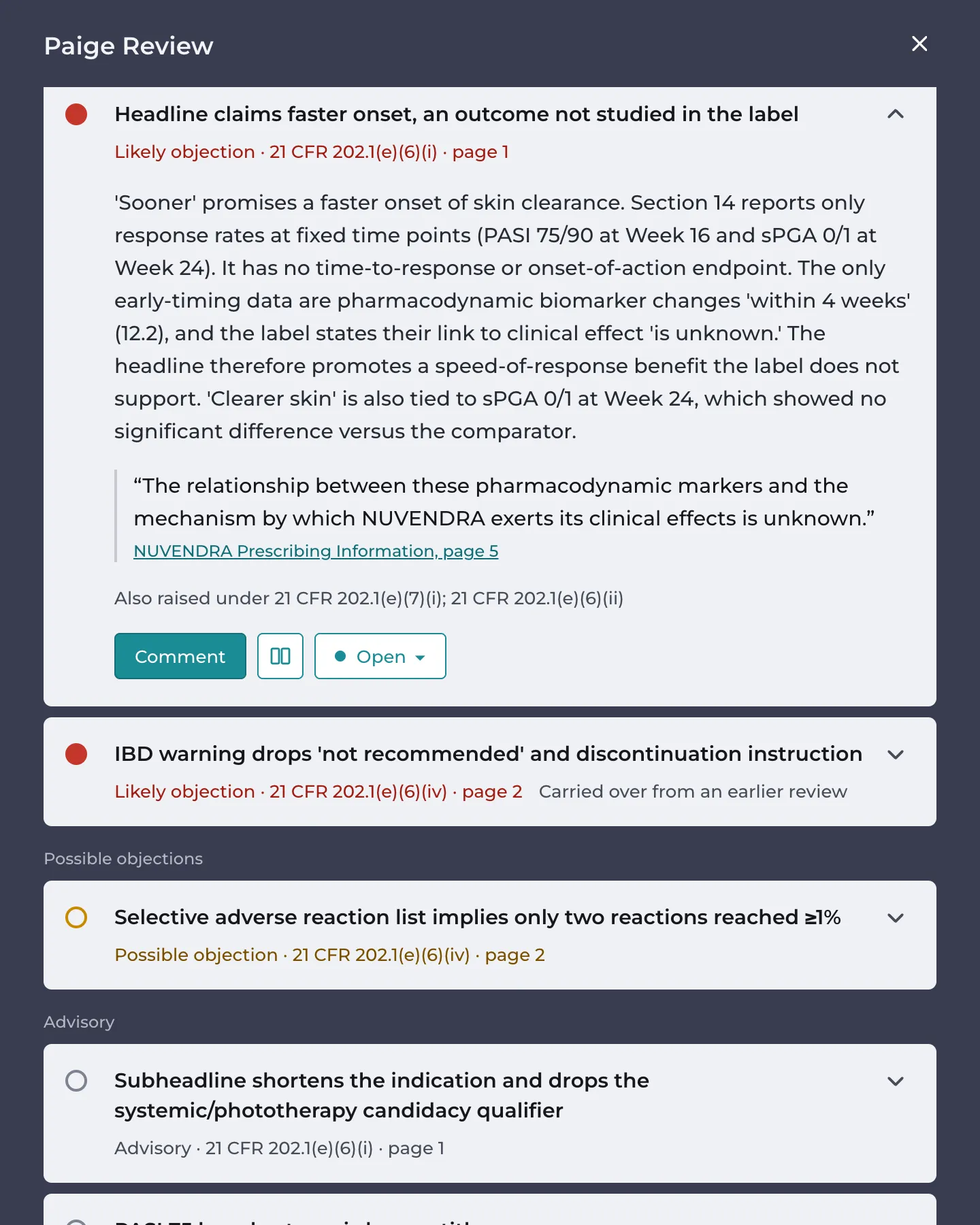
The button beside Comment opens Compare with Prescribing Information: the piece and the label side by side, on the passage the finding is about.
Decide on each finding
Every finding starts as Open. Use its status menu to mark it:
- Will fix: you agree and will change it in the next version.
- Not an issue: with a reason, Not applicable or False positive, and an optional note.
Click Comment to discuss a finding with your team. The thread stays with the finding from version to version.
The people who can change a finding’s status are admins, the piece’s owner, the person who uploaded the version, and anyone on that version’s approval list. Anyone who can open the piece can comment.
Spanish pieces
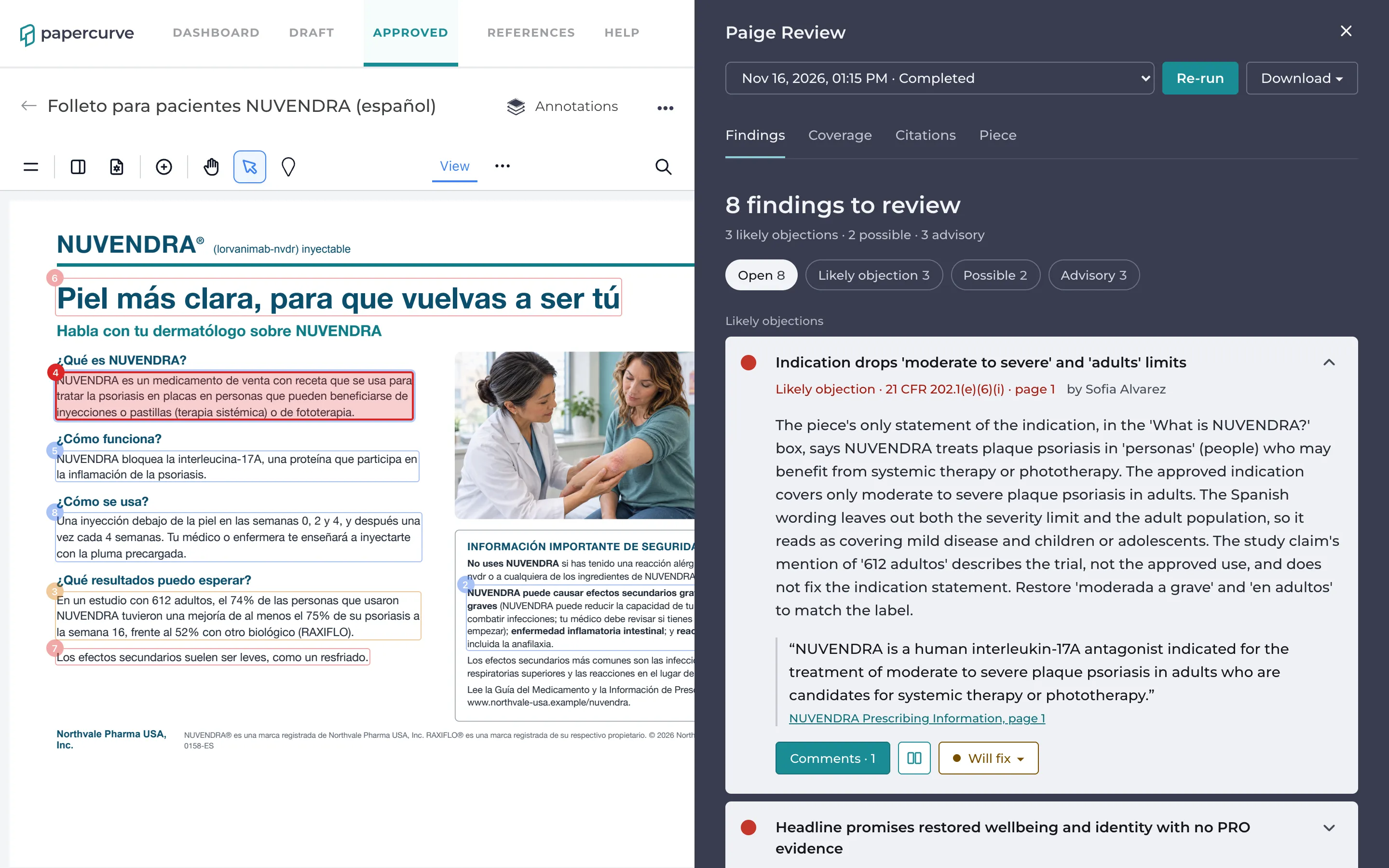
Paige checks a Spanish piece against the English Prescribing Information: it compares what the Spanish says with the label and finds risk information in Spanish. Its findings are written in English and quote the Spanish words. In the example below, the Spanish indication leaves out “adultos” and “moderada a grave”, so it reads broader than the label.
See what Paige checked
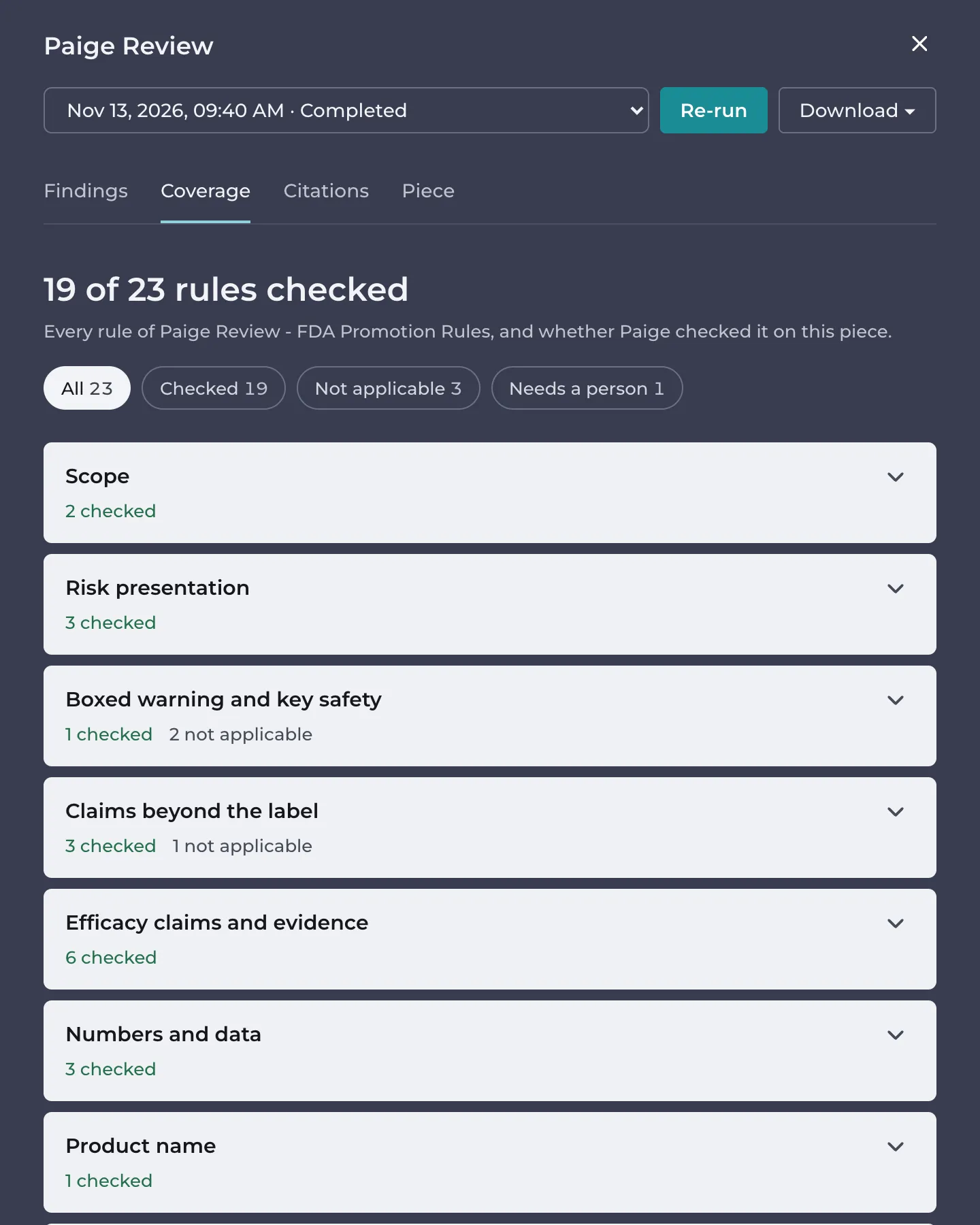
The Coverage tab lists every rule of Paige Review - FDA Promotion Rules and what Paige did with it on this piece: Checked, Not applicable (for example, the boxed warning rule on a product without one), or Needs a person. The rules are grouped as in What Paige Checks: scope, risk presentation, boxed warning and key safety, claims beyond the label, efficacy claims and evidence, numbers and data, the product name, and the submission checklist.
New versions
When you upload a new version, Paige reviews it and compares it with the last one:
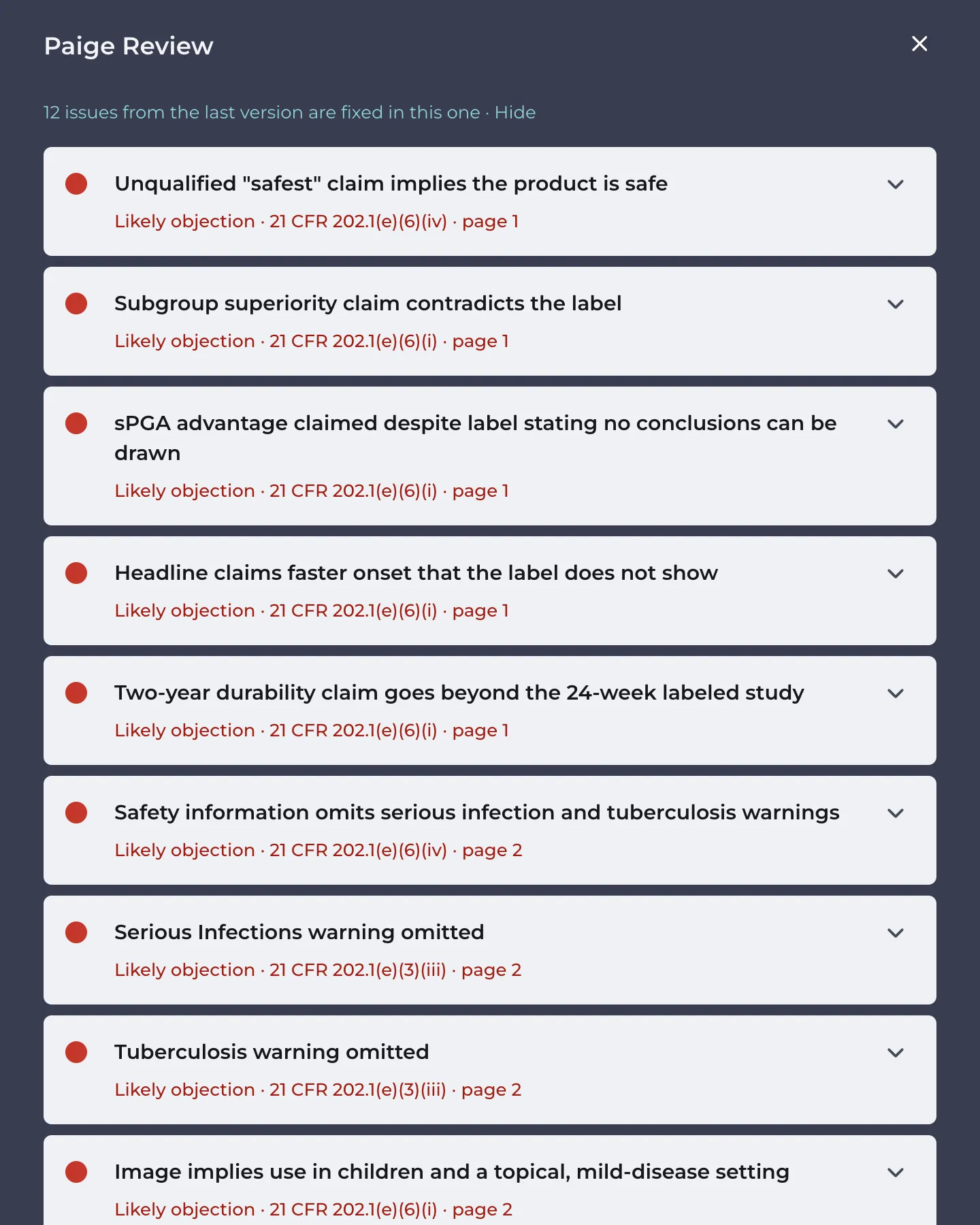
- Issues it no longer finds are marked Fixed. The line at the top of the list, for example 12 issues from the last version are fixed in this one, shows them.
- A finding marked Not an issue stays so.
- A finding marked Will fix that is still in the new version opens again, so it isn’t missed.
Download the report
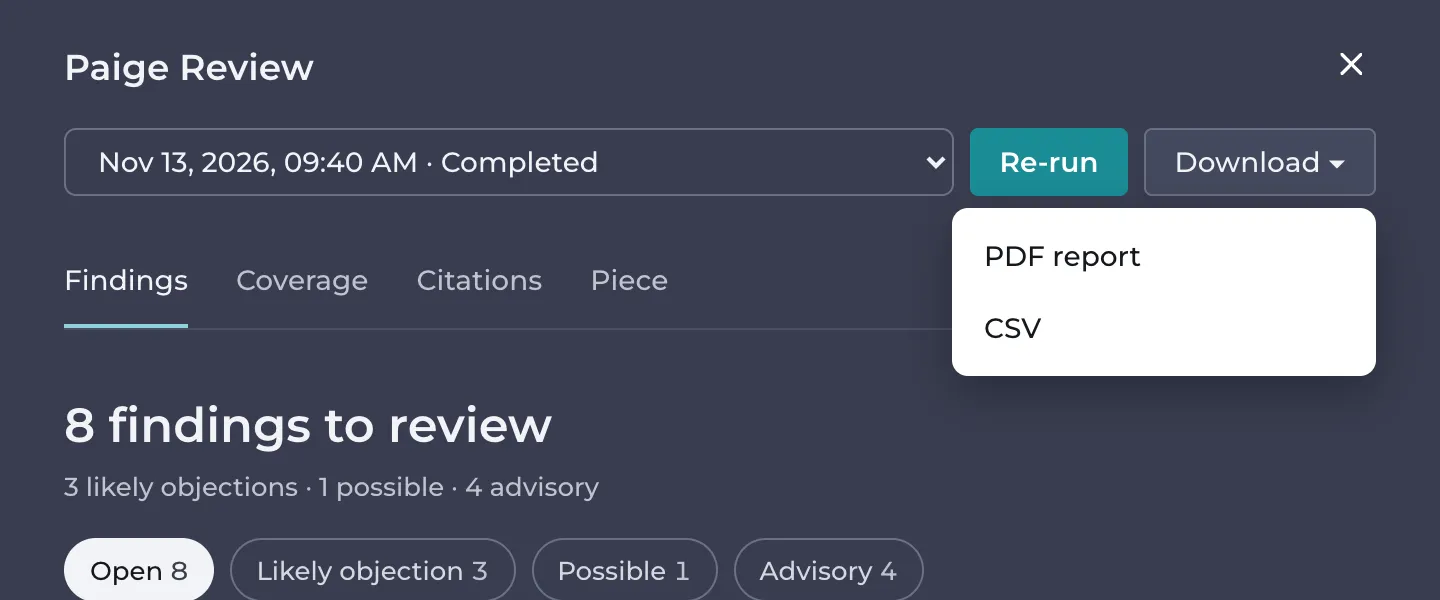
Download at the top of the panel gives you the report as a PDF. It lists every finding with its citation, status and who decided it, plus a checklist of what a person must confirm, including submission on Form FDA 2253 at first dissemination. Use it to prepare the piece for submission and for your review records.
The example in this article
The company, product, study and people are fictional. Northvale Pharma USA, Inc. promotes NUVENDRA (lorvanimab-nvdr) injection for moderate to severe plaque psoriasis in adults. Its evidence is NAVIGATE-1, a head-to-head trial against RAXIFLO. Version 1 of the NUVENDRA HCP detail aid calls NUVENDRA “the safest biologic choice”, claims superiority across subgroups, presents a non-significant result as a win, leaves serious infections and tuberculosis out of its safety information, and shows a child although NUVENDRA is for adults. Version 2 fixes most of these. A Spanish patient brochure follows.
Good to know
- Paige’s findings and reports are in English, whatever the language of the piece.
- Each Papercurve workspace has a monthly limit on Paige Review. When it is reached, new reviews pause until the first of the next month; contact Papercurve support to raise it.
- Paige doesn’t send emails or notifications about reviews or findings. Open the piece to see them.
- Libraries that review to the PAAB Code use Paige Review for PAAB.
Still have questions?
Chat
9am – 5pm Eastern Time, by clicking the icon in the bottom right corner of the screen.