


Compare Label and Packaging Artwork
A label can change in ways a text check will never catch: a strength printed in a new place, a logo nudged, a picture swapped, a line of small print dropped. Compare Versions looks at the artwork itself, so these show up alongside changes to the wording.
Use it when a revised label, carton, leaflet or any other designed piece comes back, and you need to know exactly what is different from the version you last reviewed.
Before you start
You need two versions of the same content in Papercurve. Upload the first file as a draft, then upload the revised file as a new version.
PDF works best, because Papercurve can read the words in it. You can also upload an image, such as a JPEG or PNG. Images are compared on how they look only.
Comparing two versions of a label
1. Open the draft, click Version History in the side panel, then click Compare.
2. The older version opens on the left and the newer version on the right. Every difference is outlined and numbered on both.
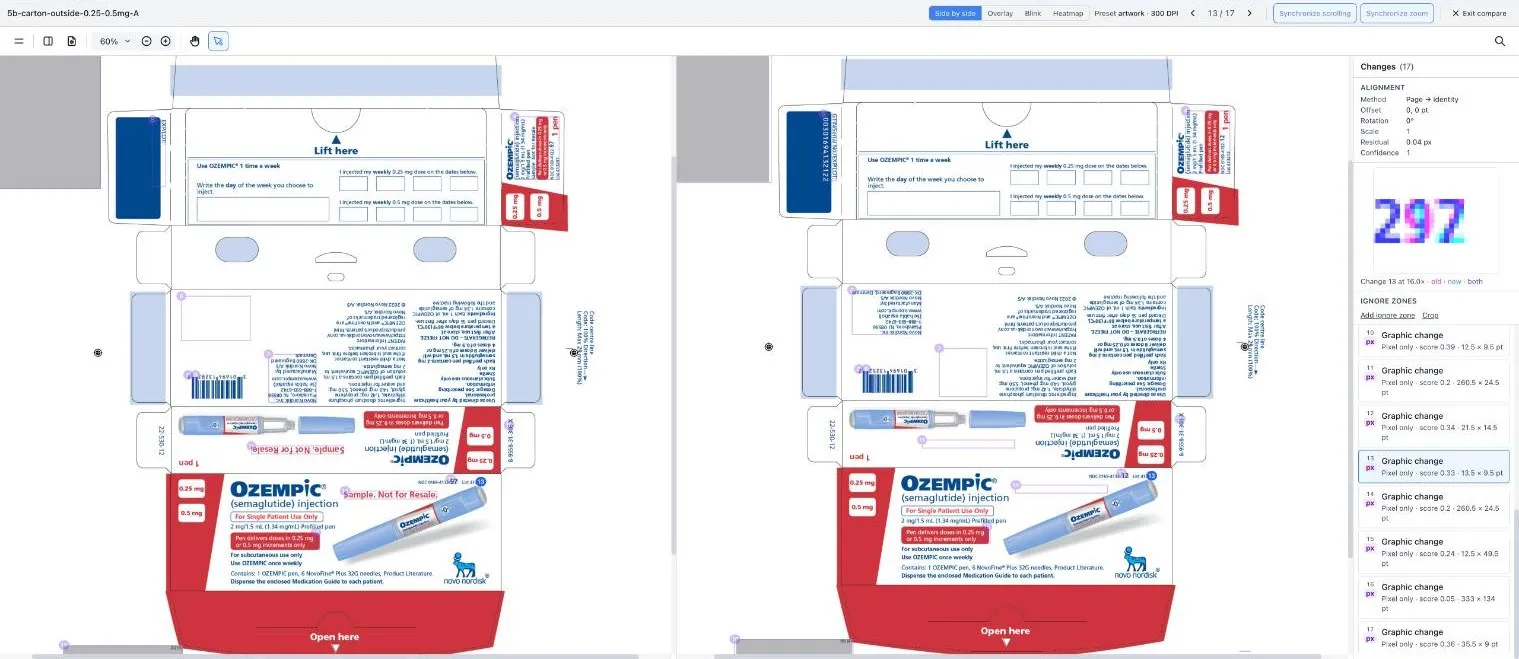
3. Work down the Changes list on the right. Click a change to select it. It is filled in blue on the page, and a close-up appears at the top of the list.
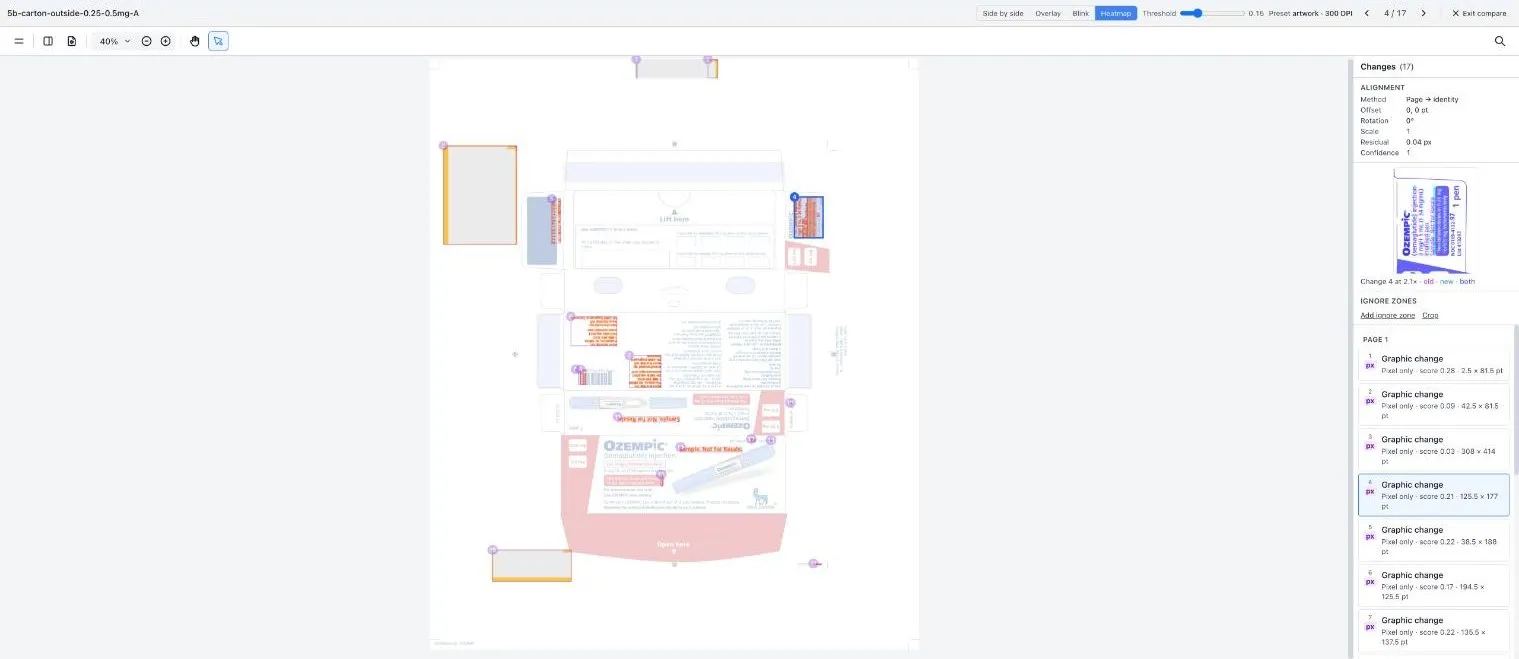
4. To see where the differences are at a glance, click Heatmap. The stronger the colour, the bigger the difference.
5. Leave comments on the draft for anything that needs fixing, the same way you review any other content.
What Compare picks up on a label
- wording that was added, removed or changed
- a number that changed, such as a strength, a quantity or a product code
- an image, logo or icon that was swapped, resized or moved
- a colour that changed
- a panel or line that was added or taken away
- small print, including text that is part of the artwork
What it does not check
Compare tells you what is different between two versions. It does not tell you whether either version is right. It does not:
- check colours against a brand or print standard
- scan barcodes or check that they read correctly
- read braille
- check spelling
Good to know
- Lot numbers, expiry dates and printer marks often differ between files and are not real changes. You can leave them out with ignore zones.
- Both versions should be the same layout at the same size. If one file is a different size or slightly rotated, Compare lines them up first and tells you how in the Alignment section of the Changes list.
- A change to a large area, such as a whole panel changing colour, is listed as one change that covers everything inside it.
- For more on reading the list, see Understanding compare results.
Still have questions?
Chat
9am – 5pm Eastern Time, by clicking the icon in the bottom right corner of the screen.