


Paige Review
Paige Review reads your content the way a reviewer would and points out likely problems: an absolute claim, a missing balance of risk and benefit, a required statement that isn’t on the page. You see the findings before you send the content for review, so you can fix the obvious issues first.
The rules Paige checks against are called a rulebook. A rulebook can follow a published code, such as PAAB or FDA requirements, or it can be written around your own approval process.
Paige Review is an assistant. It helps you catch common issues early, and it does not replace your regulatory or medical review.
How it works
- Paige Review is switched on per library, and each library uses one rulebook. To have it switched on for a library, contact our customer success team.
- In a library where it is on, every piece of content is reviewed automatically after it is uploaded, and again after every new version. You don’t have to start it.
- A review takes a few minutes. It starts once Papercurve has finished processing the file.
Reading the findings
1. Open the content. In the side panel, Paige Review shows how many findings there are. While a review is running it says Processing.
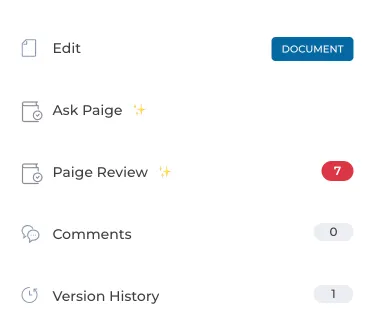
2. Click Paige Review. The panel opens beside your content with the totals at the top: Critical, Warnings and Info.
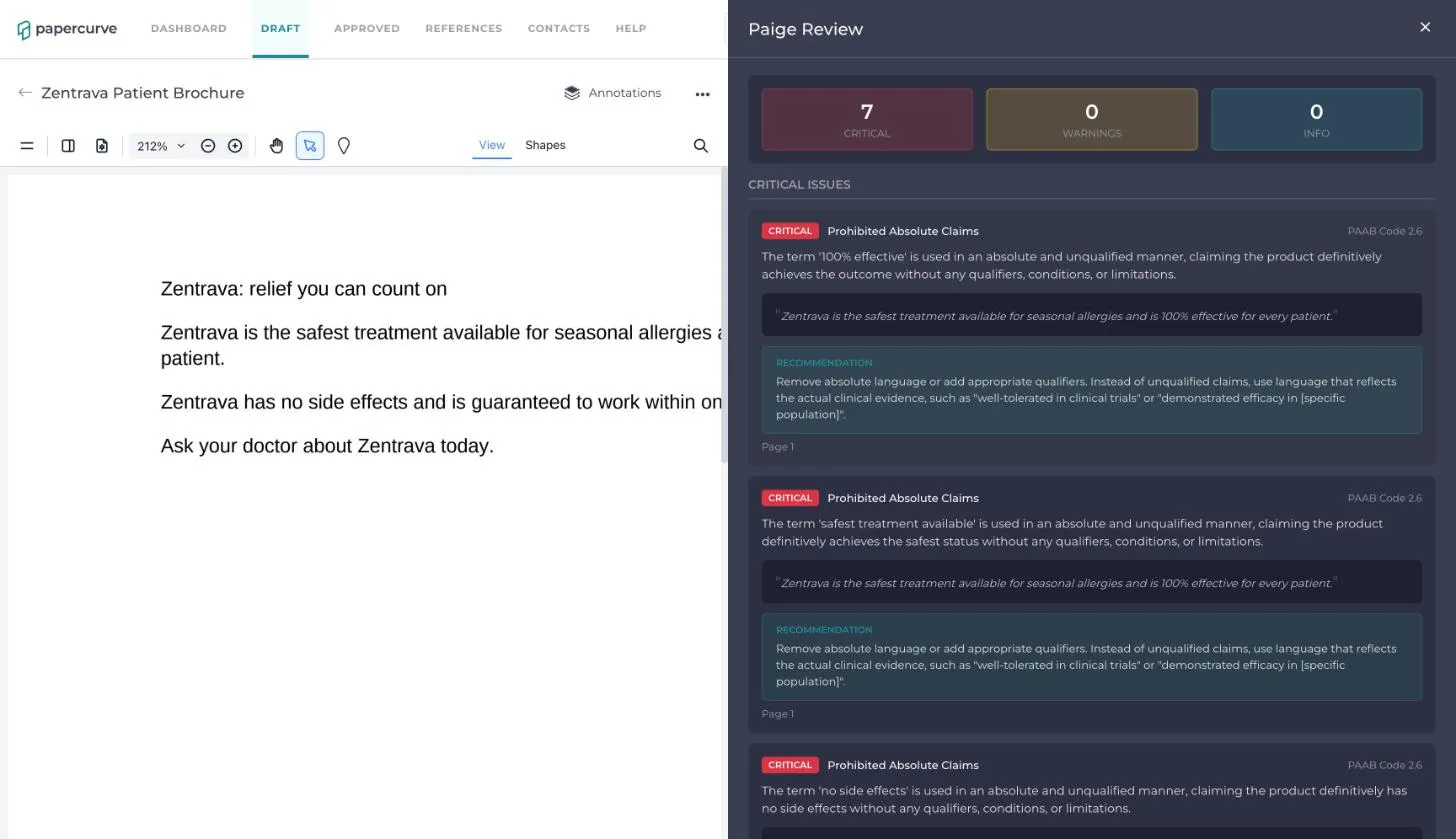
3. Read through the findings. They are grouped by severity and listed in page order. Each one shows:
- the rule it relates to, with its code section
- what Paige found
- the text from your content that the finding is about
- a recommendation for fixing it
- the page it is on
Seeing findings on the page
While the Paige Review panel is open, each finding is marked on your content where the problem is. The outline is in the colour of its severity, with a number.

- Click a finding in the panel to go to it. It is filled in on the page and the other findings fade, so you can see which one you are looking at.
- A finding can be marked in more than one place. A fair balance finding, for example, marks both the claim and the safety information it is compared with.
- Close the panel to clear the marks from the page.
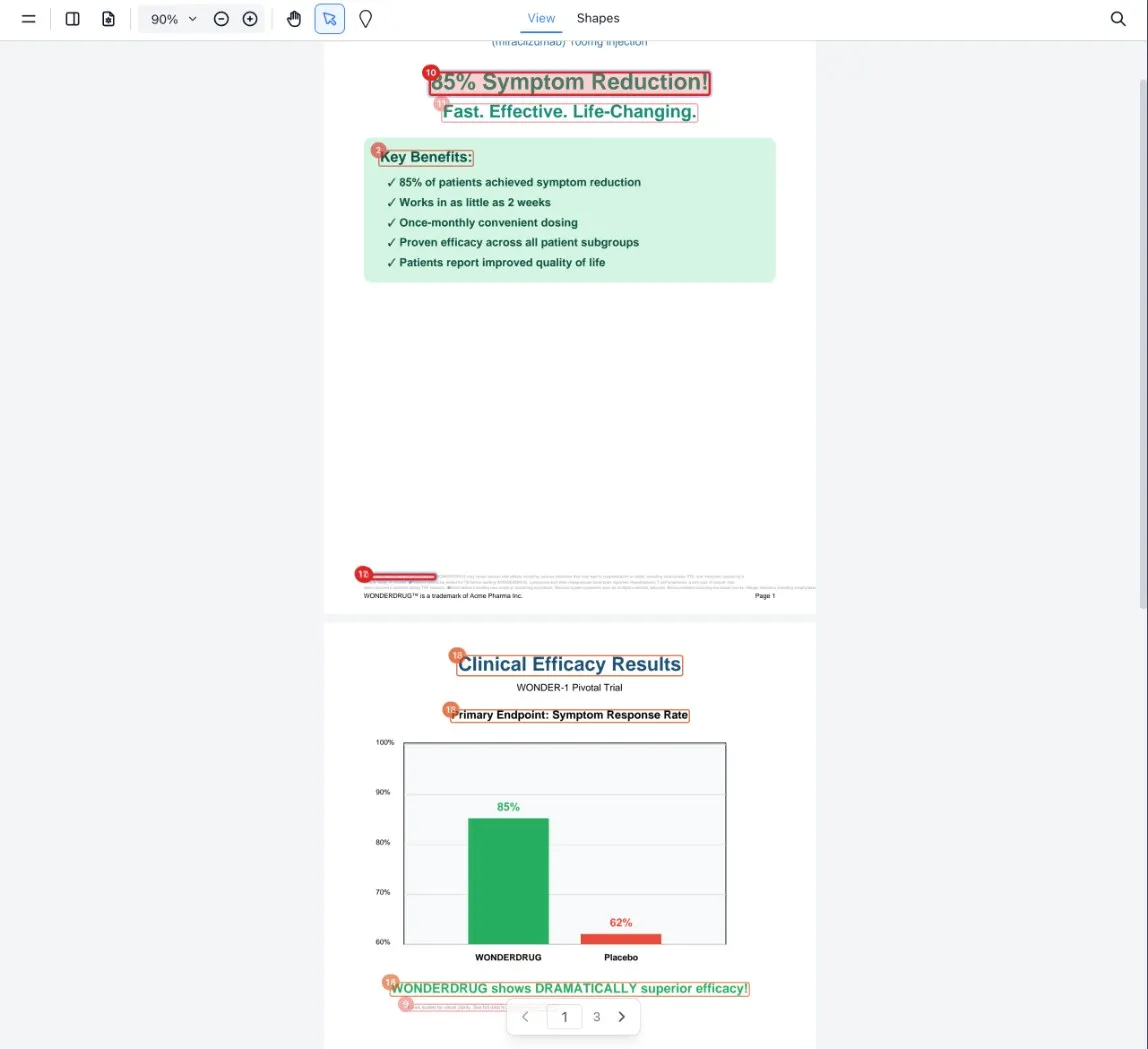
Paige marks findings in two ways:
- A solid outline is drawn around the exact words the finding is about.
- A dashed outline or a pin is an estimate. Paige uses these for findings about a picture, a chart or an icon, where there are no words to point to. The finding says Approximate area on the page, estimated by Paige. Treat it as “look around here”.
A few findings are not marked on the page at all, because they are about the page as a whole. Clicking one takes you to its page.
Fixing what Paige finds
Make your changes and save a new version. You can edit the file in Papercurve Office or upload a new version. Paige reviews the new version automatically, and the count in the side panel updates when it is done.
Rulebooks
What Paige checks depends on the rulebook your library uses.
PAAB (Canada)
Paige looks for:
- claims made in absolute terms, such as “safest” or “100% effective”
- a fair balance of risk and benefit
- charts whose axes or proportions could mislead
- a link to the product monograph
FDA (United States)
Paige checks content against issues raised in published FDA enforcement letters, such as the balance of risk information and how indications and efficacy are presented.
Rules written for your team
Paige Review is not limited to published codes. A rulebook can be built around the way your organization approves content:
- rules for your industry, such as checking that every page of a medical device piece carries the required Research Use Only or In Vitro Diagnostic statement
- rules that belong to your company or to one team within it, such as required wording, mandatory disclaimers, or the checks your reviewers make on every piece
Different libraries can use different rulebooks, so each team can have its content checked against the rules it actually reviews to.
Custom rulebooks are set up by Papercurve together with your team. To talk about one, contact our customer success team. You can see examples of what Paige finds at paige.papercurve.com.
Good to know
- Paige Review does not approve content and does not stop it from being released. Your review team still decides.
- Findings belong to the version they were made on. Open the current version to see the latest review.
- Content reviewed before findings were shown on the page has findings in the panel only. Upload a new version to have it reviewed again with the marks.
- Paige Review is not available for videos.
- If the panel says Analysis failed, upload the file again as a new version to run the review again, or contact customer success.
Still have questions?
Chat
9am – 5pm Eastern Time, by clicking the icon in the bottom right corner of the screen.