


Pins and Shapes
Most comments and references start by highlighting text. Some things can’t be highlighted: an image, a chart, a logo, white space where something is missing. For those, drop a pin on the spot or draw a shape around it.
A pin or a shape is always one of two things: a comment for your review team, or a reference that links the spot to a reference document.
Dropping a pin
1. Open the draft. Click the pin icon in the toolbar above your content, then choose Pin a Comment or Pin a Reference.
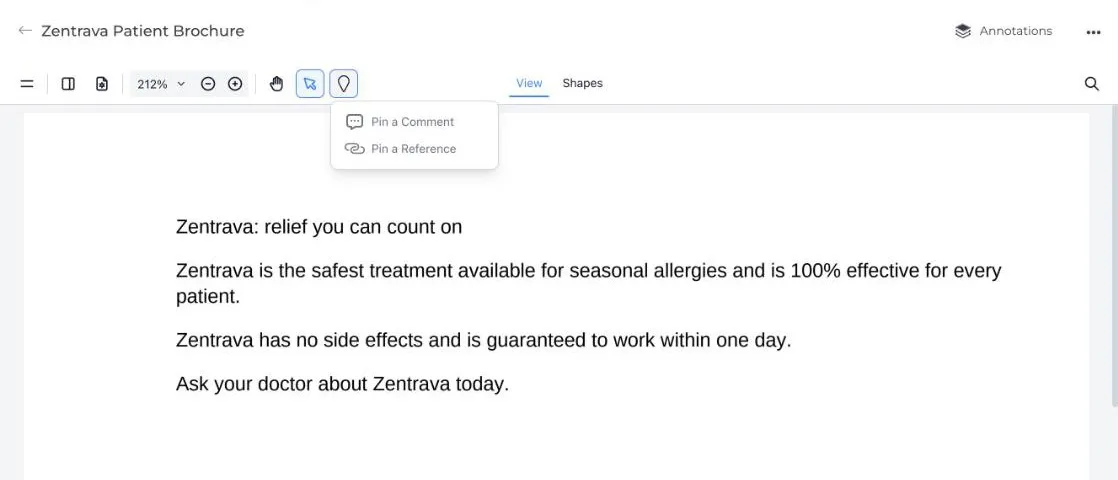
2. Click the spot on the page where the pin should go.
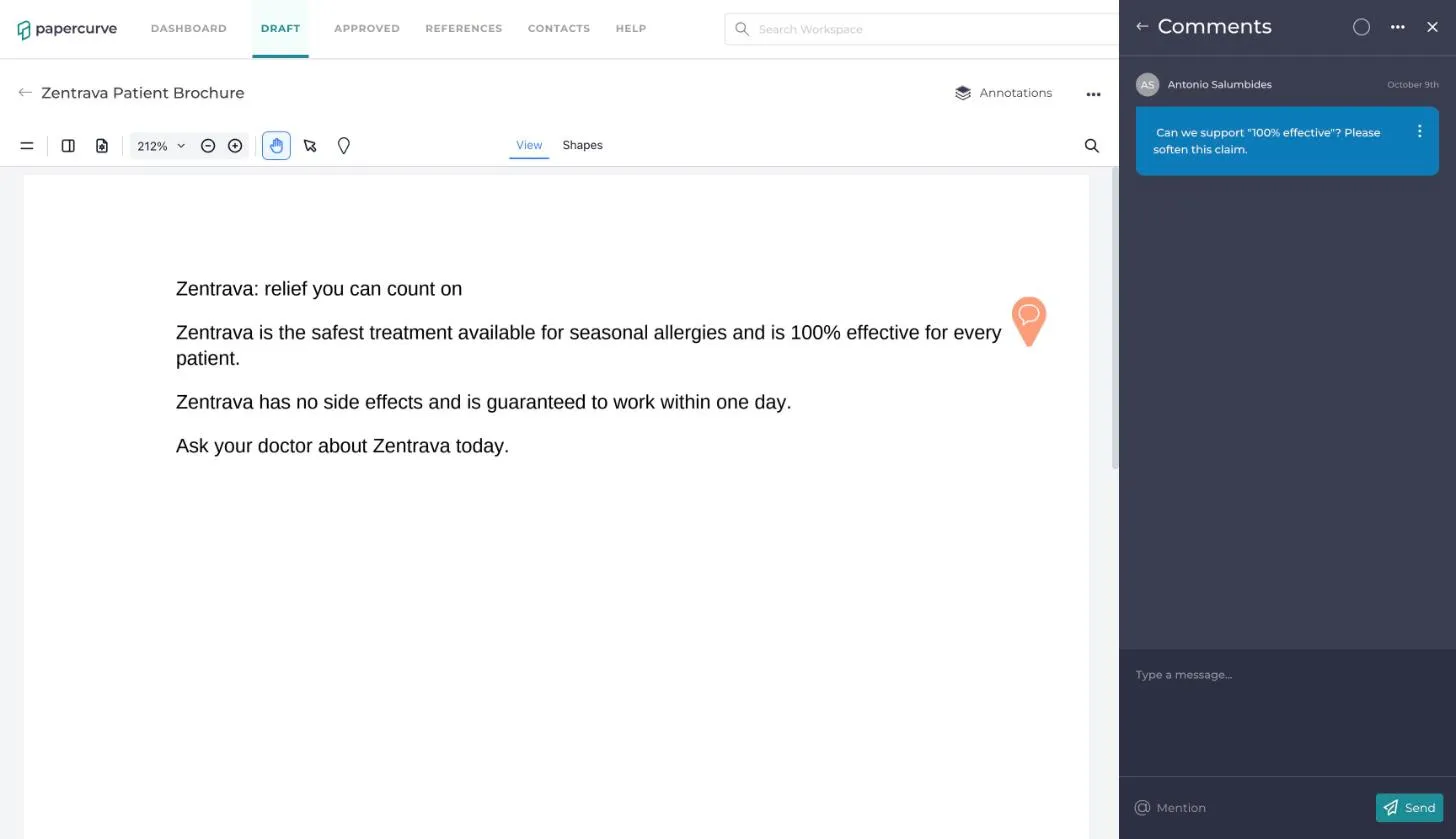
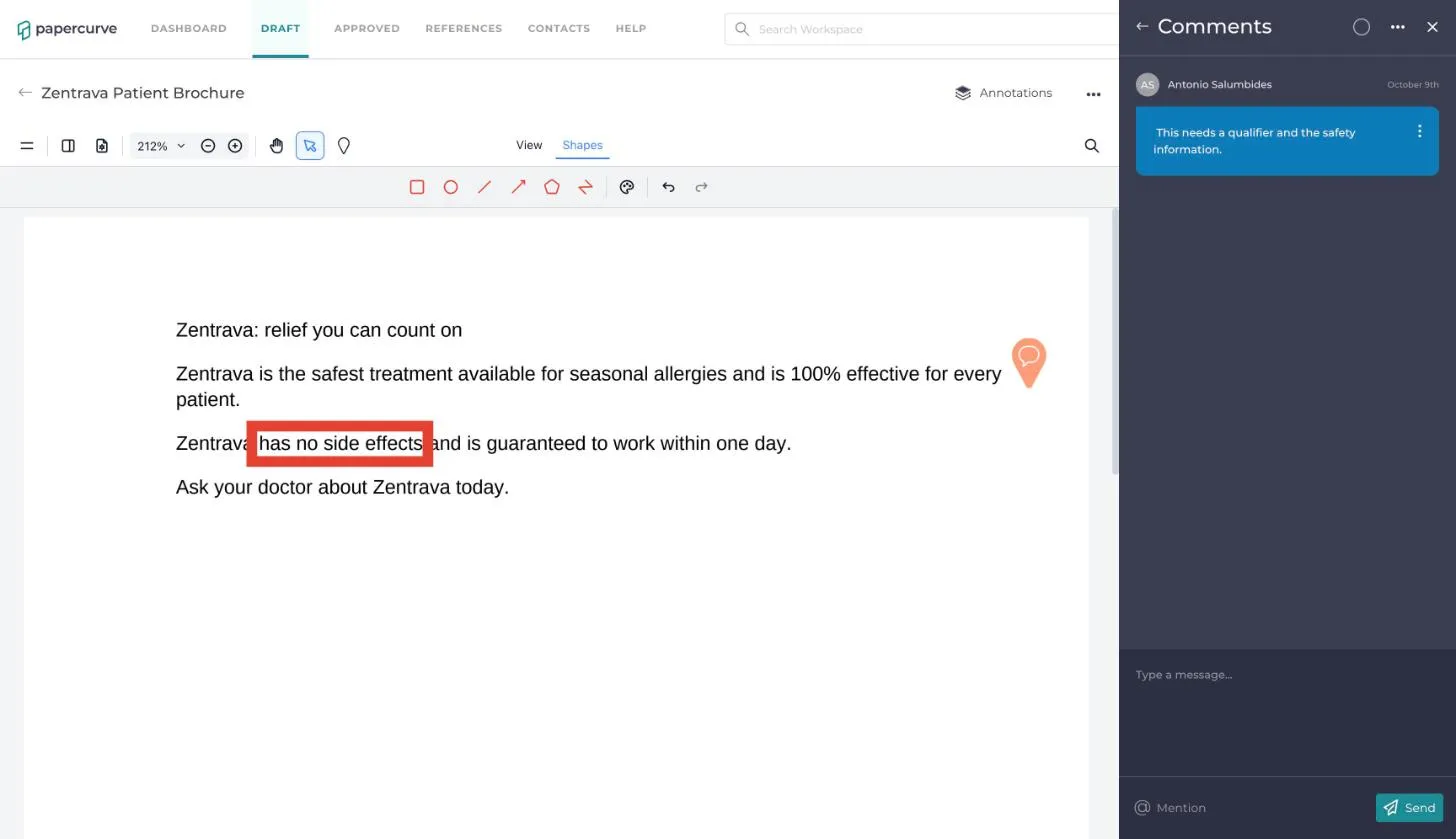
3. If you chose Pin a Comment, the Comments panel opens. Type your comment and click Send. The comment is attached to the pin.
4. If you chose Pin a Reference, the Link Reference panel opens. Choose the reference document, then the citation inside it, the same as when you create a reference from highlighted text.
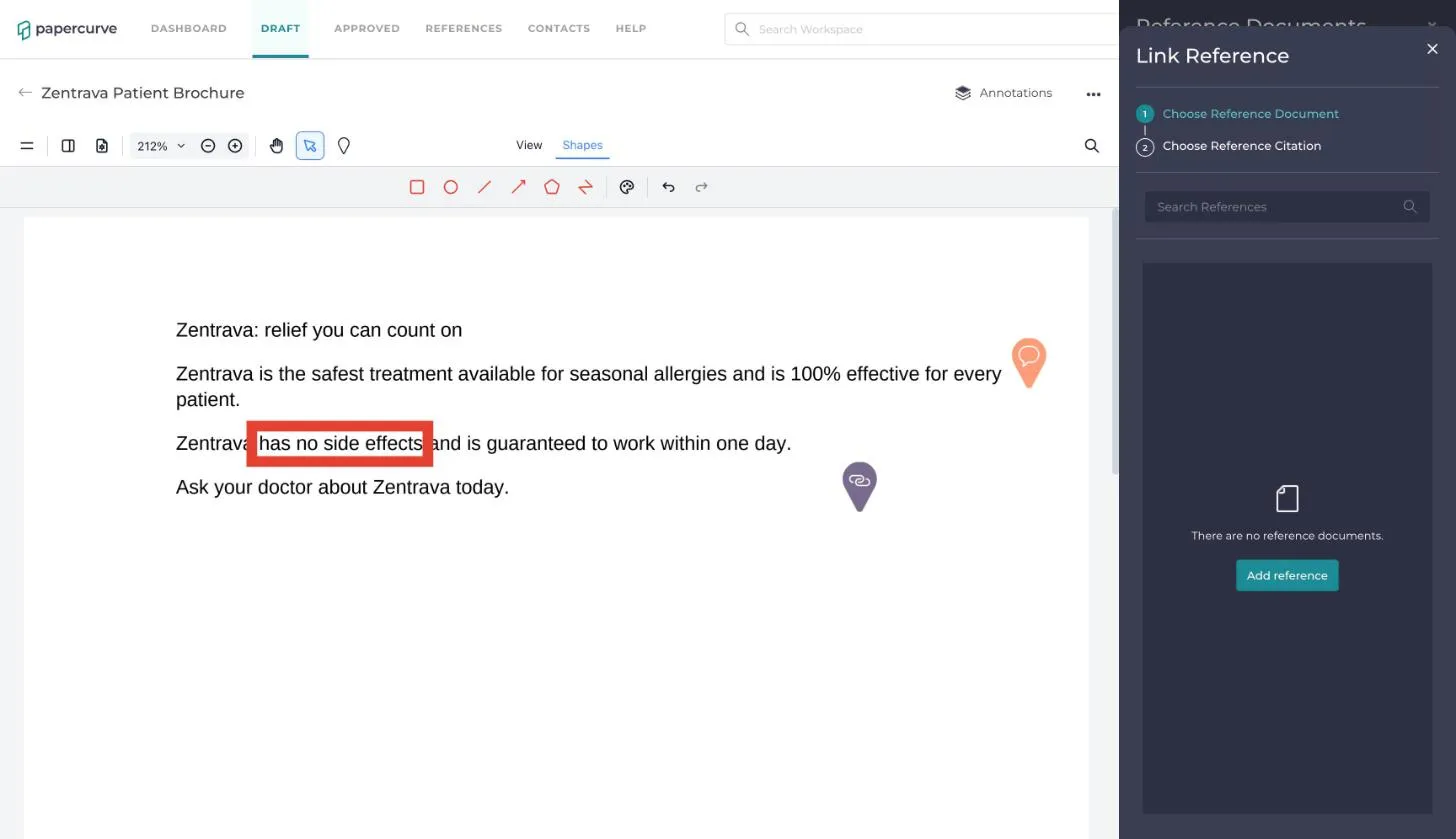
Comment pins are orange and reference pins are purple, so you can tell them apart on the page.
Drawing a shape
1. Click Shapes in the toolbar. A second row of tools appears: rectangle, circle, line, arrow, polygon and polyline. The palette icon changes the colour, and the arrows beside it undo and redo.
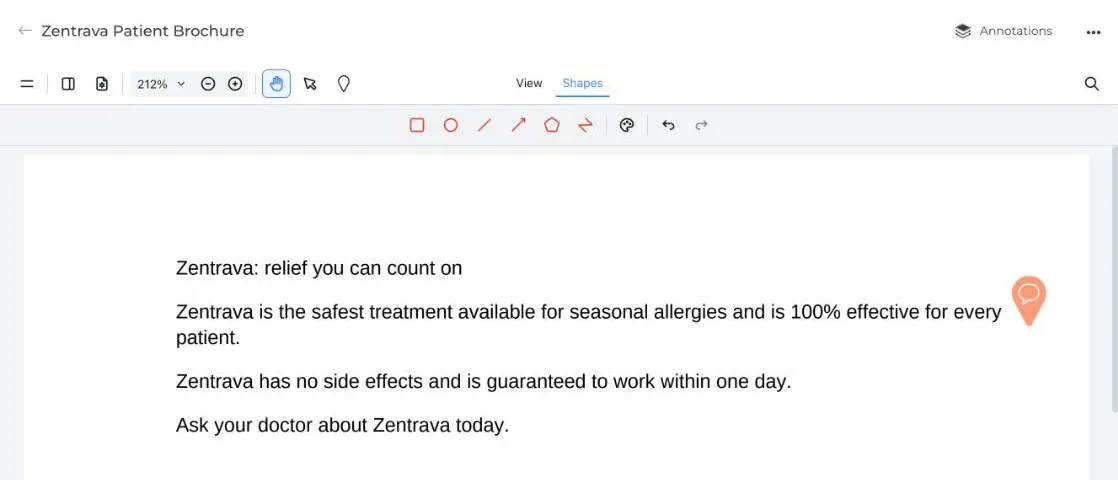
2. Choose a tool and draw on the page. Drag for a rectangle, circle, line or arrow. For a polygon or polyline, click each corner in turn.
3. A small menu appears beside the shape. Click the comment icon to leave a comment on the shape, or the link icon to make it a reference.
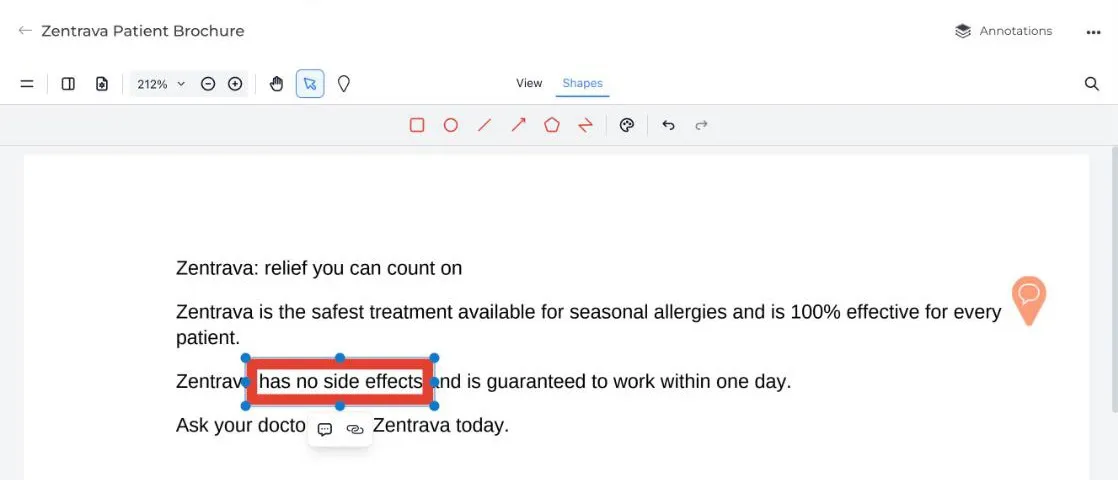
4. Finish the comment or reference the same way as with a pin.
Click View in the toolbar to put the shape tools away when you are done.
Good to know
- A pin or shape is only kept once its comment is sent or its reference is linked. If you close the panel first, or draw a shape and click away without choosing, it is removed.
- Clicking a pin or shape on the page opens its comment or reference. They also appear in the Comments and References lists in the side panel, like any other.
- Pins and shapes can be added to the current version of a draft. Released content and older versions can’t be marked up.
- When a new version is uploaded or saved from Papercurve Office, pins and shapes with unresolved comments, and those with references, are carried over in the same position. If the layout changed, check that they still point at the right spot.
Still have questions?
Chat
9am – 5pm Eastern Time, by clicking the icon in the bottom right corner of the screen.