


Paige Review for PAAB: Setting Up Products and Product Monographs
Many PAAB Code provisions are about what a piece says compared with the product’s Product Monograph. For example, the indication must match the authorized one, serious warnings must be given, and claims must stay within the Terms of Market Authorization. To check these, Paige needs to know which product a piece promotes and what that product’s monograph says.
You give Paige that on the Products page. Add each product, link its Product Monograph in English and French, and Paige reads each monograph into a product card. Once a person verifies the card, every review of a piece about that product uses it.
This is part of Paige Review for PAAB: The Complete Guide. Only admins can add or change products. Authors can open the page and read product cards.
Opening the Products page
1. Click your name at the top right and choose Workspace.
2. In the menu on the left, under Workspace, click Products.
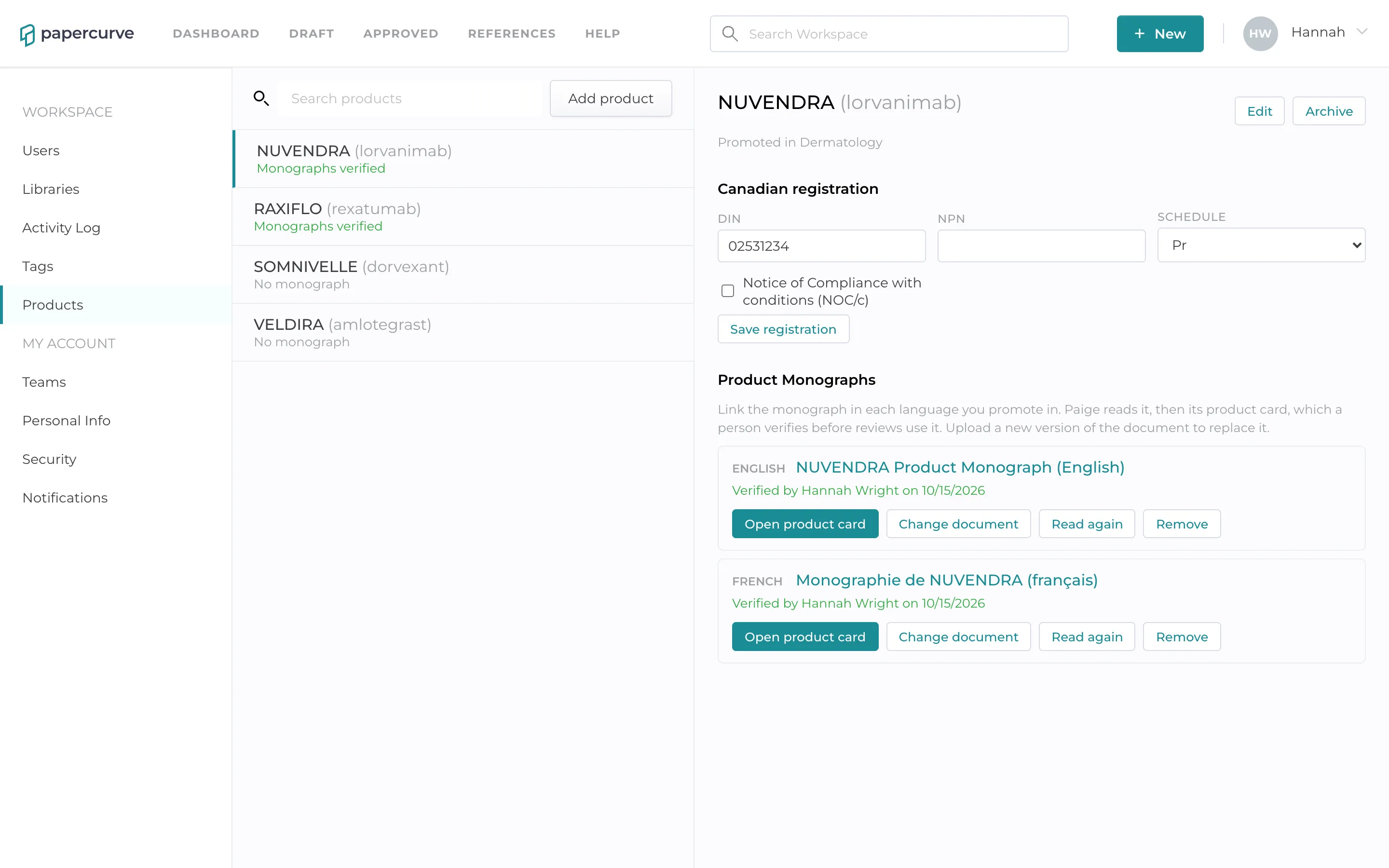
The page lists your products on the left. Under each name is where it stands:
- Monographs verified: every linked monograph has a verified product card.
- Product card to verify: Paige has read a monograph and its card is waiting for a person.
- Reading monograph: Paige is reading a monograph.
- Monograph problem: Paige couldn’t read a monograph. Open the product to see why.
- No monograph: no monograph is linked yet.
Adding a product
1. Click Add product.
2. Enter the Brand name, for example NUVENDRA. This is required, and must not already be a product.
3. Enter the Non-proprietary name, for example lorvanimab.
4. Under Libraries, tick the libraries whose pieces promote this product. In the example, NUVENDRA is promoted in the Dermatology library.
5. Click Save.
Paige finds a piece’s product by looking for the brand and non-proprietary names in the piece. Spell them as they appear in your pieces, without ® or ™; Paige ignores those marks when it reads.
How Libraries works
When Paige reviews a piece, it looks at the products linked to that piece’s library, and at the products linked to no library. If no product is linked to the library at all, it looks at every product in the workspace.
That means:
- A product linked to no library, shown as Not linked to a library, can be matched in any library.
- A product linked to other libraries only isn’t matched in this one. Link it here too if this library’s pieces promote it.
- The same list is offered on a piece’s Piece tab, where you can choose its product by hand.
Adding the Canadian registration
The monographs belong to the product’s Canadian registration, so add the registration first.
1. Open the product.
2. Under Canadian registration, fill in what you have: DIN, NPN, Schedule and Notice of Compliance with conditions (NOC/c). None of these is required.
3. Click Add Canadian registration. Later changes are saved with Save registration.
Until the registration is saved, the monograph section says Save the Canadian registration first.
Linking a Product Monograph
First upload the monograph to Papercurve as a document, like any other file. Use the text PDF from Health Canada’s Drug Product Database, not a scan.
1. Open the product. Under Product Monographs there is a row for English and one for French.
2. On the row for the monograph’s language, click Link document.
3. Choose a library, or All libraries, and search by title. Click the monograph, then click Link document.
4. Paige reads the monograph. The row shows Paige is reading the monograph… and the page updates by itself when it’s done.
5. When the row says Product card waiting to be verified, an admin checks and verifies the card. See Verifying a Product Card.
Link both languages if you promote in both. A French piece, and the French half of a bilingual piece, is checked against the French monograph.
What Paige can read
Paige reads the monograph into its standard Health Canada sections, in the current or the older template, in English or French. It rejects:
- a scan, a PDF with no text layer. Upload the text PDF from the Drug Product Database instead.
- a document that isn’t a monograph, one without Indications and Contraindications sections.
- the wrong language, for example a French monograph linked on the English row.
When Paige can’t read a monograph, the row says Paige couldn’t read this monograph with the reason.
Changing or updating a monograph
- A new monograph from Health Canada: upload it as a new version of the same document. Paige reads the new version automatically. If the text changed, it builds a new product card, which must be verified again. Until it is, reviews treat the product as not verified.
- Change document: links a different document. Paige starts again from that document, and the old card and its verification are discarded.
- Read again: reads the same file again. If the file hasn’t changed, a verified card stays verified. Reload the page to see the result.
- Remove: unlinks the monograph and deletes its product card.
Archiving a product
Click Archive on the product and confirm. The product is hidden from the list, from detection and from the Piece tab. Reviews that used it keep their record. A piece that was set to the archived product goes back to Paige detecting its product.
Good to know
- Competitors you compare with. To check a comparison, such as NUVENDRA against RAXIFLO, Paige needs the competitor’s monograph too. Add the competitor as a product, linked to the libraries whose pieces compare with it, and verify its card. Without it, the comparison checks wait and the panel says so.
- Verifying a card doesn’t re-review existing pieces. Their Paige Review panel says A product card was verified after this review: click Re-run to check the piece against it.
- When only one language is linked, the list says so, for example English monograph verified · no French. French and bilingual pieces can’t be checked against the monograph until the French one is linked and verified.
- DIN, NPN, Schedule and the NOC/c box are kept with the product, but the checks use what Paige reads from the monograph, as verified on the product card.
- When a piece names a competitor more often than its own product, Paige may match the wrong product. Set the product on the piece’s Piece tab. See The Piece Tab.
Next: Verifying a Product Card
Still have questions?
Chat
9am – 5pm Eastern Time, by clicking the icon in the bottom right corner of the screen.