


Paige Review for PAAB: Deciding on Findings
Every finding needs a decision: either you’ll change the piece, or it isn’t a problem. Recording that decision on the finding tells your team where things stand. It keeps Paige from raising the same point again, and it puts the reason on the report your reviewers see.
This is part of Paige Review for PAAB: The Complete Guide.
The statuses
| Status | What it means | Set by |
|---|---|---|
| Open | No one has decided yet. Every finding starts here. | Paige, or a person setting it back |
| Will fix | Agreed: the piece will change in the next version. | A person |
| Not an issue: not applicable | The provision doesn’t apply to this piece. | A person |
| Not an issue: Paige is wrong | Paige misread the piece or the study. | A person |
| Not an issue: accepted by PAAB | PAAB has accepted this, for example on an earlier submission. | A person |
| Fixed in version N | The problem is gone in version N. | Paige, on a new version |
The status shows on each finding in its colour: teal for Open, amber for Will fix, grey for Not an issue and green for Fixed. Fixed and Not an issue close a finding. Will fix stays in the open list until the new version shows it’s fixed.
You don’t mark a finding fixed yourself. Upload the new version and Paige checks it. See New Versions and Fixed Findings.
Changing a status
1. On the finding, click its status, for example Open ▾.
2. Choose Will fix, or one of the reasons under Not an issue.
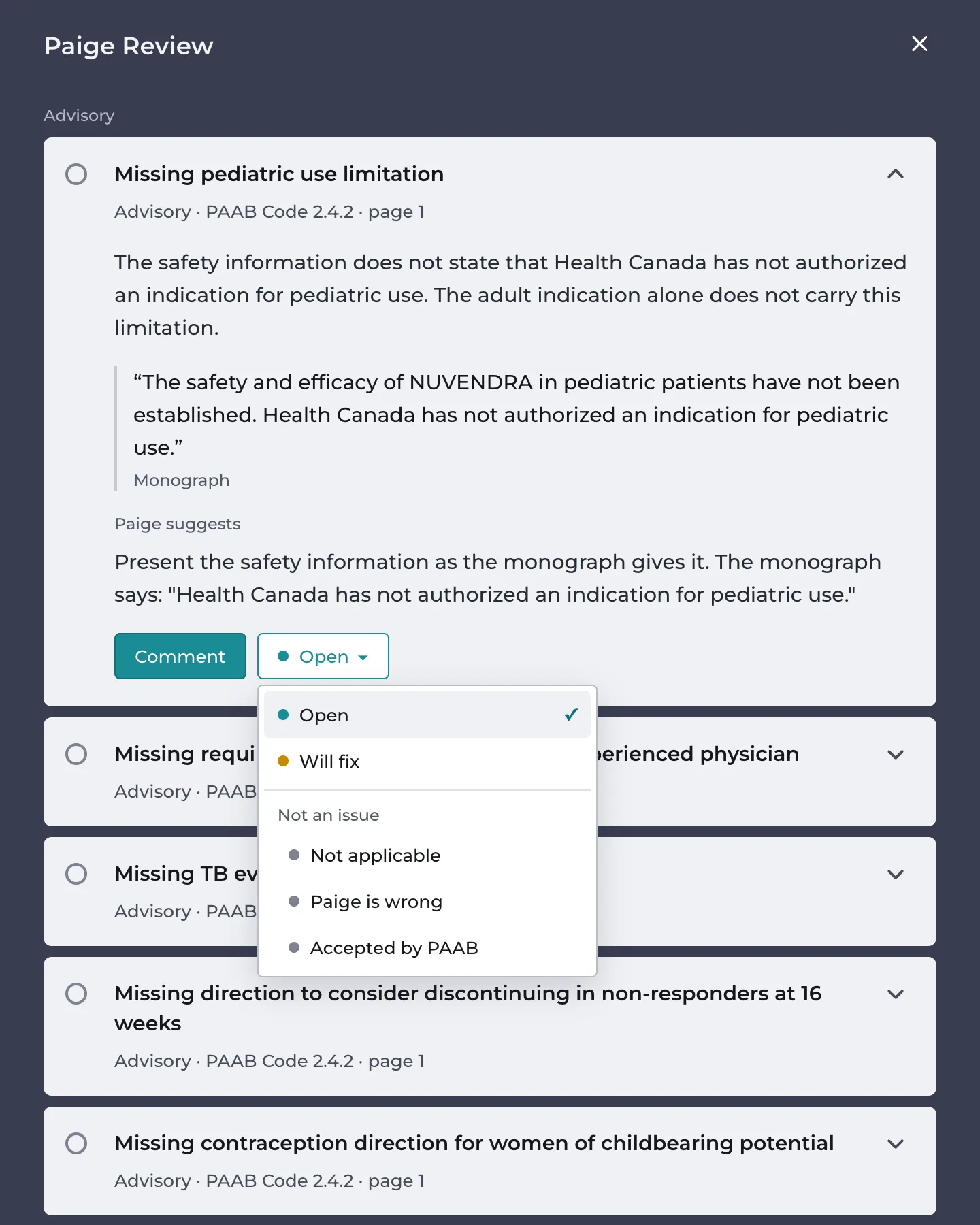
The finding shows the new status and who set it. It stays in view until you reload the review, so you can change your mind.
To give your reasons, change the status from the finding’s thread instead: type your note in the message box, then change the status. The note is saved with it, shown on the finding and printed on the report. See Discussing a Finding.
Who can change a status
- admins
- the piece’s owner
- the person who uploaded the version
- anyone on that version’s approval list, including observers
Anyone else sees the statuses but can’t change them. A status can only be changed on the latest review: earlier reviews are read-only.
How decisions carry over
Paige recognises the same problem on a later review by its Code provision and the words it’s about, wherever on the page they are.
- Not an issue carries over to every later review of the piece, re-runs and new versions alike, with its reason, note and who decided. You won’t be asked again.
- Will fix carries over when the same version is re-run. On a new version, if the problem is still there, the finding opens again with Will fix on the last version, still found in this one.
- Fixed findings that come back on a later version open again with Resolved before, found again.
Choosing a reason
- Use Not applicable when the provision itself doesn’t apply, for example a requirement for print pieces on an electronic piece. If several findings are not applicable for the same reason, check the Piece tab: the piece may be set up wrongly. See The Piece Tab.
- Use Paige is wrong when Paige misread something. Say what in a note. Papercurve uses these to improve Paige.
- Use Accepted by PAAB only when PAAB has accepted the wording, and note the submission it was accepted on. In the example, Luc marks the detail aid’s pregnancy and breastfeeding wording Not an issue: accepted by PAAB, with the note “This wording was accepted by PAAB on the NUVENDRA launch journal ad (PAAB file 2024-1187).” Paige doesn’t raise it again on version 2.
Good to know
- Every status change, with who made it and when, is listed in the finding’s thread.
- The PDF report and the CSV list each finding’s status, reason, note, and who set it and when. See Downloading the Report.
Next: Discussing a Finding
Still have questions?
Chat
9am – 5pm Eastern Time, by clicking the icon in the bottom right corner of the screen.