


Why Content Shows "Processing"
After you upload content, upload a new version or save from Papercurve Office, Papercurve has some work to do before everything is ready. While that work is under way you will see Processing in one or more places. This is normal, and it finishes without you doing anything.
What happens after an upload
Papercurve works through the file in this order:
1. Prepares the file for the viewer. Word, Excel, PowerPoint and image files are converted so they can be shown and marked up in the browser. This is the first step, so you can open your content as soon as possible.
2. Prepares each page. Page images and thumbnails are created.
3. Reads the content for Paige. The text is prepared so that Ask Paige can answer questions about it.
4. Runs Paige Review, if it is switched on for the library. See Paige Review.
Each step waits for the one before it. That is why your content can be open in the viewer while Ask Paige or Paige Review still says it is processing.
Where you will see it
In the viewer
Processing document… appears in place of your content while the file is being prepared. The page checks every few seconds and shows your content as soon as it is ready. You don’t need to refresh.
In Ask Paige
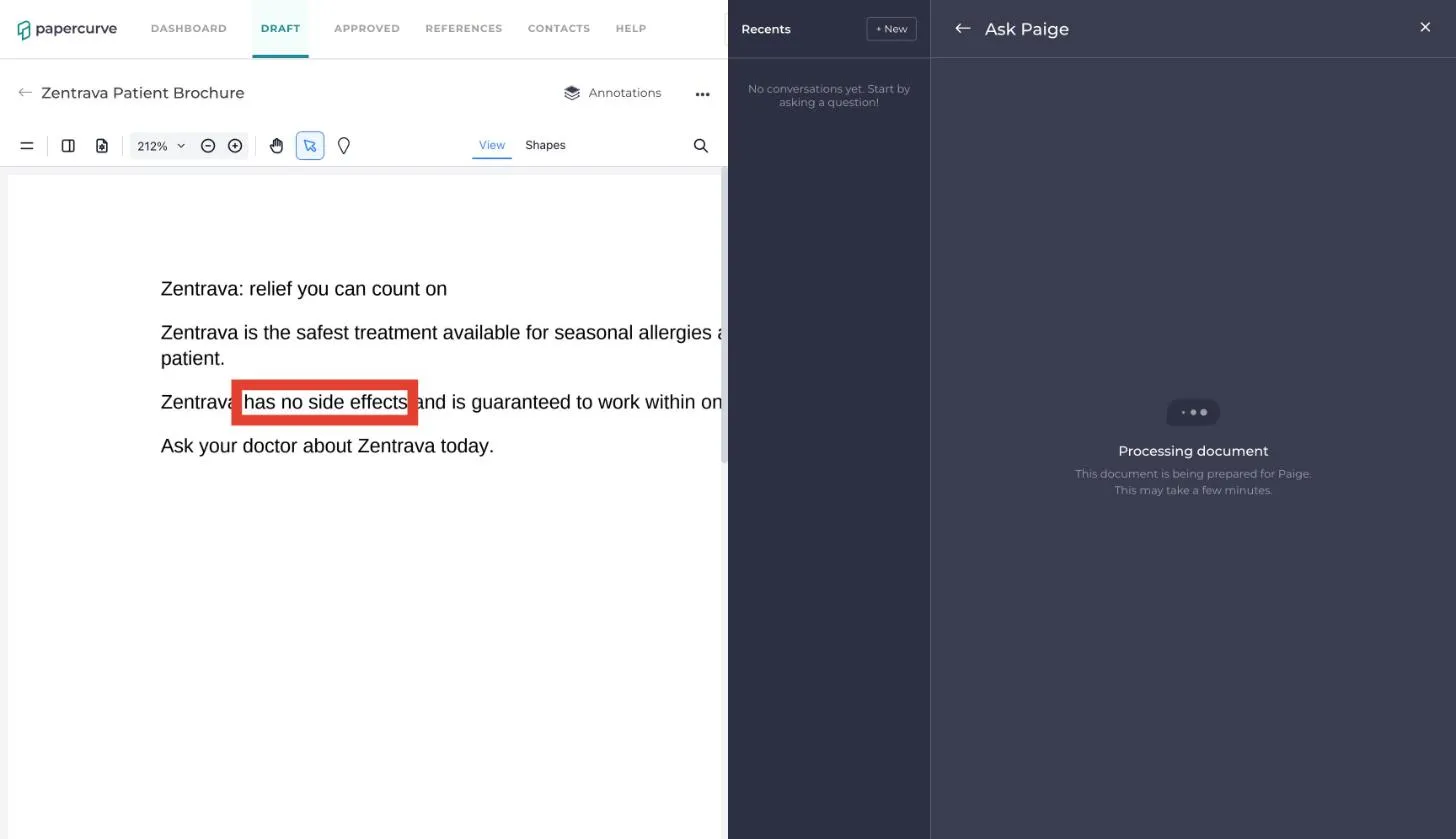
The panel says Processing document until Paige has finished reading the content. You can ask questions once it is done.
In Paige Review
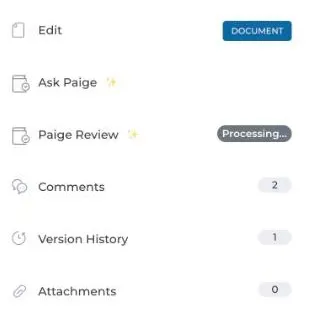
The Paige Review entry in the side panel shows Processing… and the panel says Analysis in progress. The findings appear by themselves when the review is complete.
On a video
A video shows Your file is processing… while it is converted for playback.
How long it takes
- Most documents are ready in the viewer in under a minute. Long files, large images and scanned pages take longer.
- Ask Paige and Paige Review each take a few minutes more.
- Videos depend on their length and can take several minutes.
- When many files are uploaded at the same time they wait in line, so each one can take longer than usual.
You can leave the page while you wait. The work carries on, and your content will be ready when you come back.
If it doesn’t finish
- Your document could not be processed. Please refresh the page to try again. The viewer shows this after waiting ten minutes. Refresh the page. If the file is very large it may simply need more time.
- Processing failed in Ask Paige means Paige could not read the file. Upload the file again as a new version.
- Analysis failed in Paige Review means the review could not be completed. Uploading a new version starts a new review.
- There was an error processing your file on a video means it could not be converted. Use the buttons shown to upload the file again or go back to the previous version.
- Not available in Ask Paige is not an error. Paige cannot read videos.
If content is still processing after an hour, or the same file fails more than once, contact our customer success team and tell us the title of the content. See Getting Help in Papercurve.
Good to know
- Every new version is processed again, including each save from Papercurve Office. The earlier versions stay available while the new one is prepared.
- Check that your file type is supported before uploading. See File type support.
Still have questions?
Chat
9am – 5pm Eastern Time, by clicking the icon in the bottom right corner of the screen.