


Paige Review for PAAB: Troubleshooting
Answers to the problems people run into most often with Paige Review in a PAAB library. For how it all fits together, see Paige Review for PAAB: The Complete Guide.
There’s no Paige Review in the side panel
- The library doesn’t have Paige Review. It’s switched on per library by Papercurve support.
- You’re looking at an earlier version. Paige Review shows on the current version only.
- The content is a video. Videos aren’t reviewed.
The piece wasn’t reviewed after upload
- It’s still processing. The review starts after Papercurve has processed the file. See Why Content Shows “Processing”.
- Processing failed. If the file couldn’t be processed, it isn’t reviewed. Upload it again as a new version.
- The monthly limit was reached. A piece uploaded while reviews were paused isn’t reviewed later by itself. Open it and click Run Paige Review.
In each case the panel says No review yet. Click Run Paige Review.
The review is taking a long time
A review takes a few minutes. Waiting to start means it’s queued behind other reviews. A review that hasn’t moved for two hours is ended as failed, and you can run it again.
Partly completed or Review failed
Partly completed means some checks didn’t finish: everything shown stands, and the panel says what didn’t finish. Review failed means the review produced no results. In both cases, click Re-run. If it fails again, contact Papercurve support with the piece’s link.
“Checks wait for a verified Product Monograph”
The checks that compare the piece with its Product Monograph didn’t run. The reason says why:
- The product this piece promotes isn’t known. Paige didn’t find a product name in the piece. Choose the product on the Piece tab. If it isn’t listed, an admin needs to add it or link it to the library. See Setting Up Products and Product Monographs.
- The monograph isn’t loaded with a verified product card. An admin needs to link the monograph, in the piece’s language, and verify its card. See Verifying a Product Card.
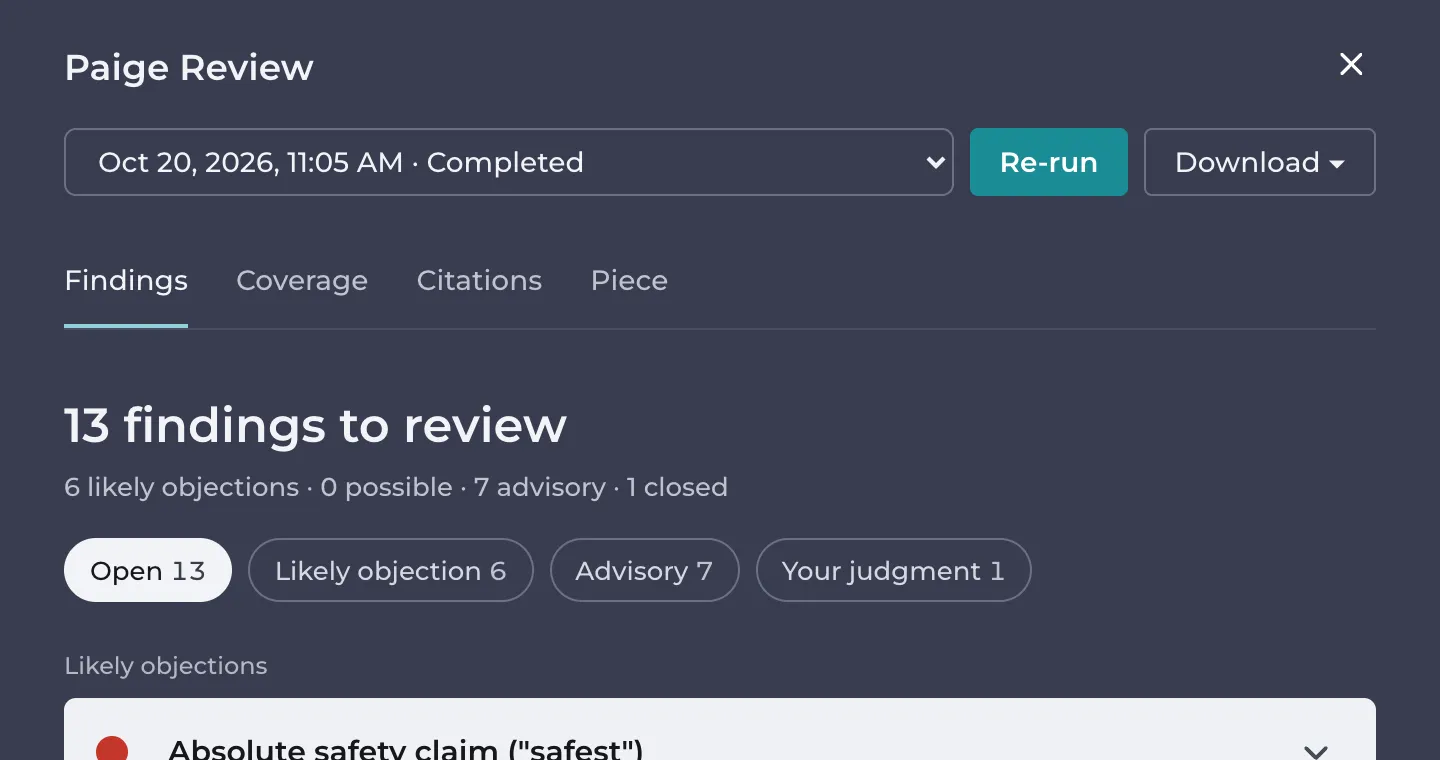
- The piece compares with a product that isn’t set up. A comparison check needs the other product’s verified monograph too. In the example, version 1’s “the safest biologic choice” compares NUVENDRA with every other biologic, which no product card can cover: remove or qualify the claim. For a named competitor such as RAXIFLO, add it as a product and verify its card.
Then click Re-run. Verifying a card doesn’t re-review pieces by itself.
Paige matched the wrong product
Paige picks the product named most often in the piece, among the products linked to its library. A piece that names a competitor often can be matched to the competitor. Choose the right product under Product it promotes on the Piece tab, then click Re-run.
Paige couldn’t read a monograph
The reason is shown on the product:
- The PDF has no text layer (a scan). Upload the text PDF from Health Canada’s Drug Product Database, as a new version of the document.
- Not usable as a Product Monograph. The document has no Indications or Contraindications section. Check you linked the monograph and not another document.
- It reads as French, but is linked as the English monograph (or the other way round). Link it on the right row.
A claim says “Source not in Papercurve”
The cited study isn’t among your reference documents, or Paige couldn’t match it. Upload it as a reference document, then click Find it in References on the claim and choose it, and click Re-run. See Getting Your Reference Documents Ready.
A claim says “Not checked”
Usually the cited study hadn’t been read yet when the review ran, or you just chose its document. Click Re-run.
The Citations tab is empty or says it can’t read the citations
See “When the citations can’t be read” in Checking Claims and Citations.
Findings that don’t apply to this kind of piece
Check the Piece tab. A missing or wrong audience, type of piece or medium means the wrong checks run. Correct it and click Re-run. See The Piece Tab.
Paige is wrong about a finding
Mark it Not an issue: Paige is wrong, and say what Paige got wrong in the finding’s thread. The decision carries over to later versions. See Deciding on Findings.
You can’t change a finding’s status
- You’re not one of the people who can. Admins, the piece’s owner, the person who uploaded the version and anyone on its approval list can.
- It’s an earlier review. Choose the latest review in the Review list.
- It’s marked Fixed in version N. Paige set that, and it can’t be changed by hand.
New reviews are paused for the month
Each Papercurve workspace has a monthly limit on Paige Review. When it’s reached, the panel says Paige Review has reached this month’s spending limit, so new reviews are paused until the first of next month. Re-run is unavailable and new uploads aren’t reviewed. Existing reviews and findings stay available, and you can keep working on them.
Admins see a notice as the workspace gets close to the limit. To raise the limit, contact Papercurve support.
Contacting support
Contact Papercurve support from the Help menu in Papercurve. Include the link to the piece and what the panel says. See Getting Help in Papercurve.
Still have questions?
Chat
9am – 5pm Eastern Time, by clicking the icon in the bottom right corner of the screen.