


What's New in Papercurve 3
Papercurve 3 keeps more of your work in one place. You can write and edit content without leaving Papercurve, ask questions about it in plain language, and get help the moment you need it. Your content, comments, references and approvals are all where you left them.
This page is a short tour. Each section links to an article with the steps.
Papercurve Office
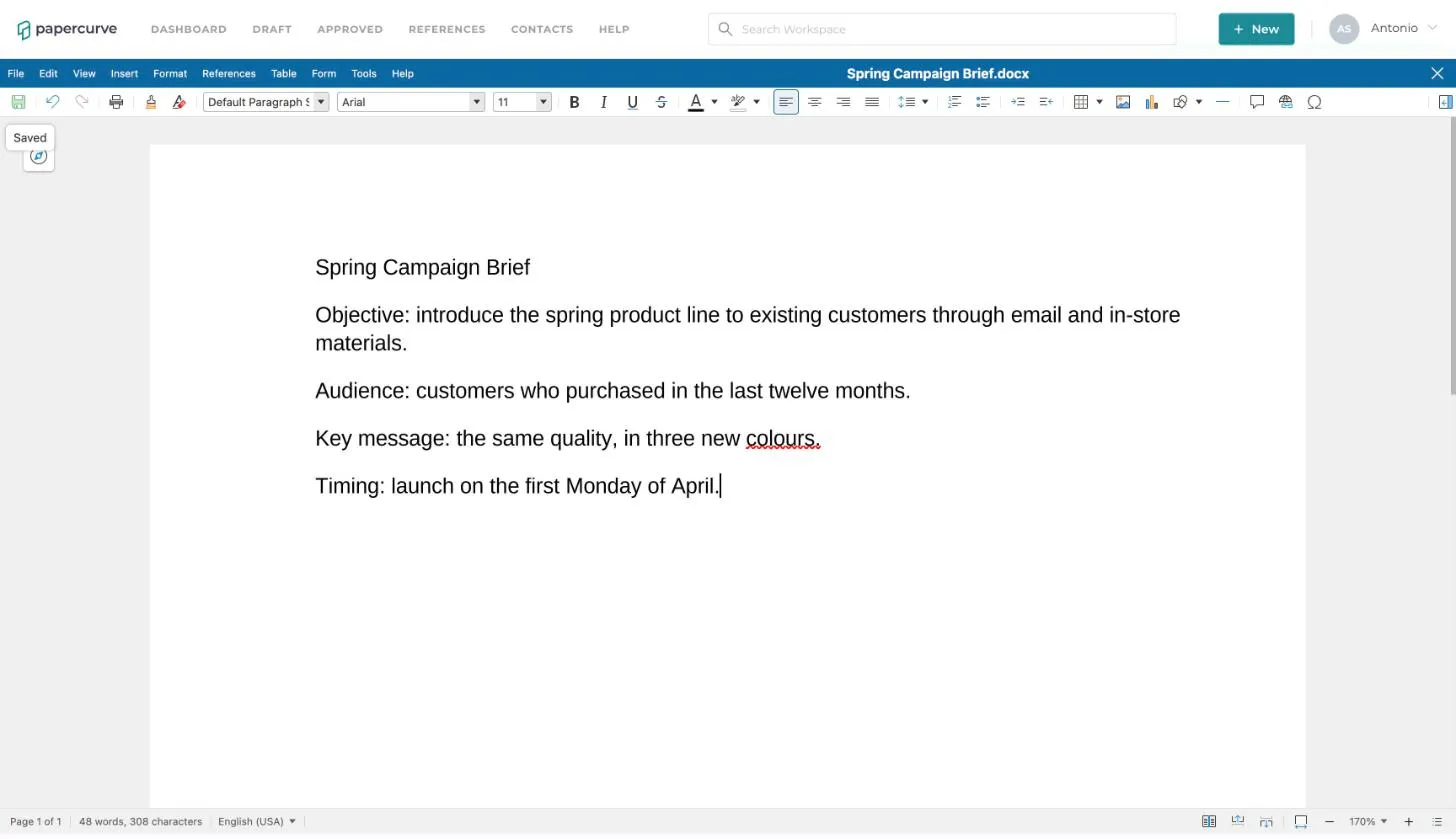
Edit Word, Excel and PowerPoint files inside Papercurve. Open a draft, click Edit, make your changes and save. Every save becomes a new version, ready for your review team. There is nothing to download and nothing to upload again.
- Everyone who edits the same content works in the same live session and sees each other’s changes.
- The new version keeps the review team, content properties, references and unresolved comments.
Read more: Papercurve Office
Start new content in Papercurve
You no longer need a finished file to begin. Click + New, open the Create tab, and choose a blank Document, Spreadsheet or Presentation, or one of your library’s templates. Give it a title and the editor opens straight away.
Read more: Start a New Office Document
Ask Paige
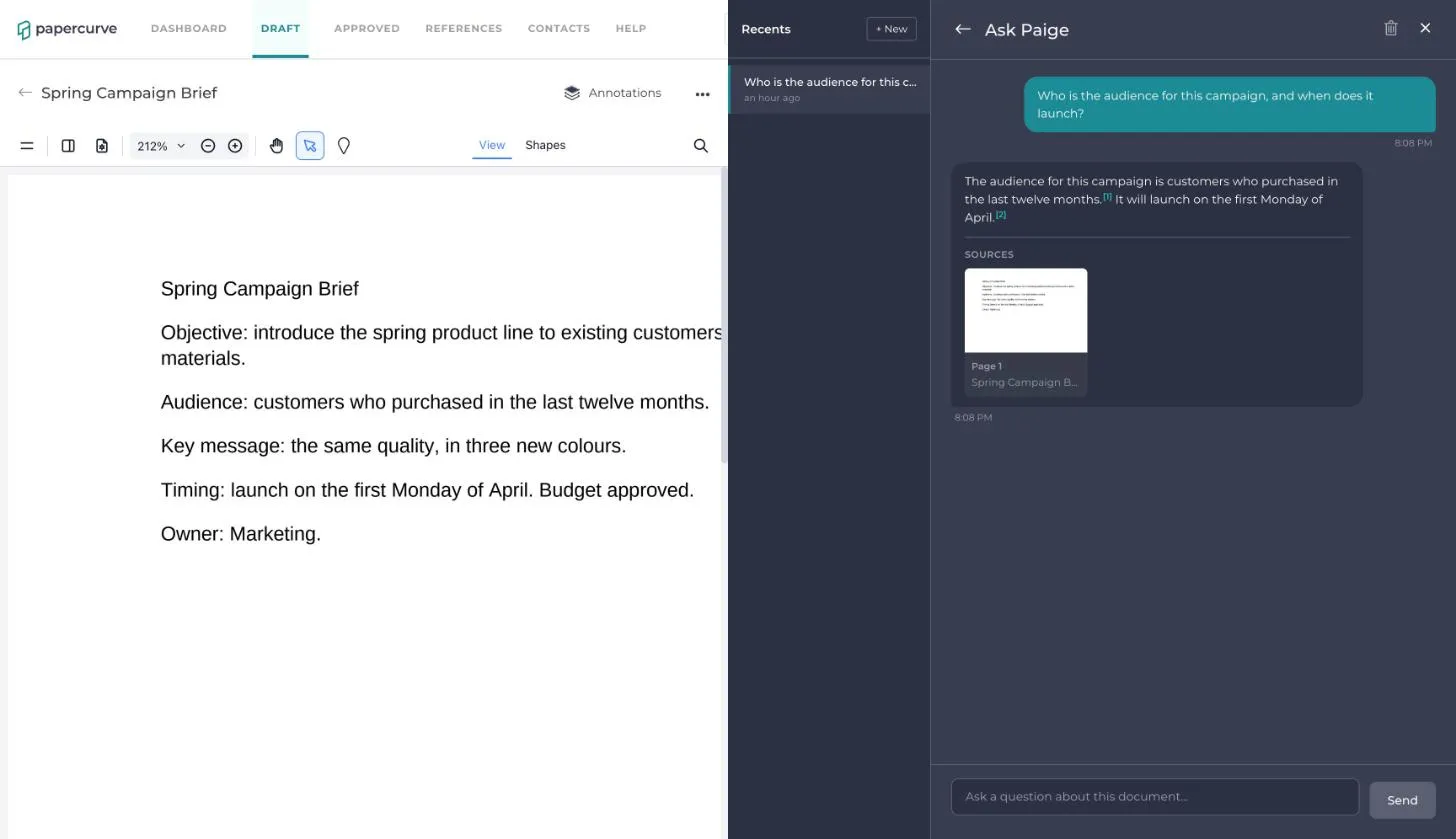
Ask a question about a piece of content and Paige answers from what is on its pages, with numbered citations you can click to jump to the source. You can also ask across a whole library, and Paige answers from its released content.
Read more: Ask Paige About a Document and Ask Paige About a Library
Help inside Papercurve
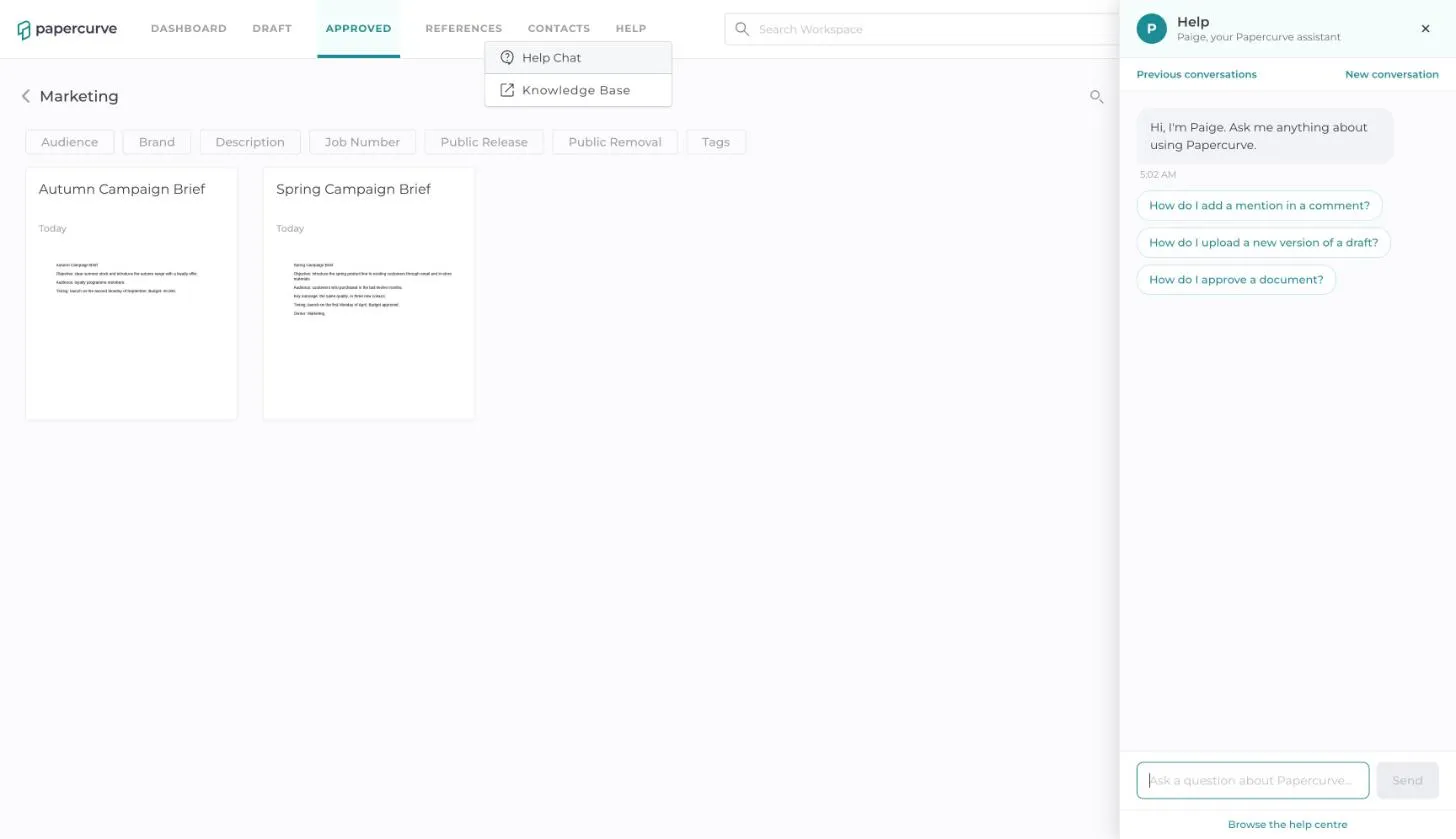
Choose Help in the header and ask how to do something. Paige answers from these help articles. If the articles don’t cover your question, Paige offers to send the conversation to our customer success team, so you don’t have to explain it twice.
Read more: Getting Help in Papercurve
Paige Review
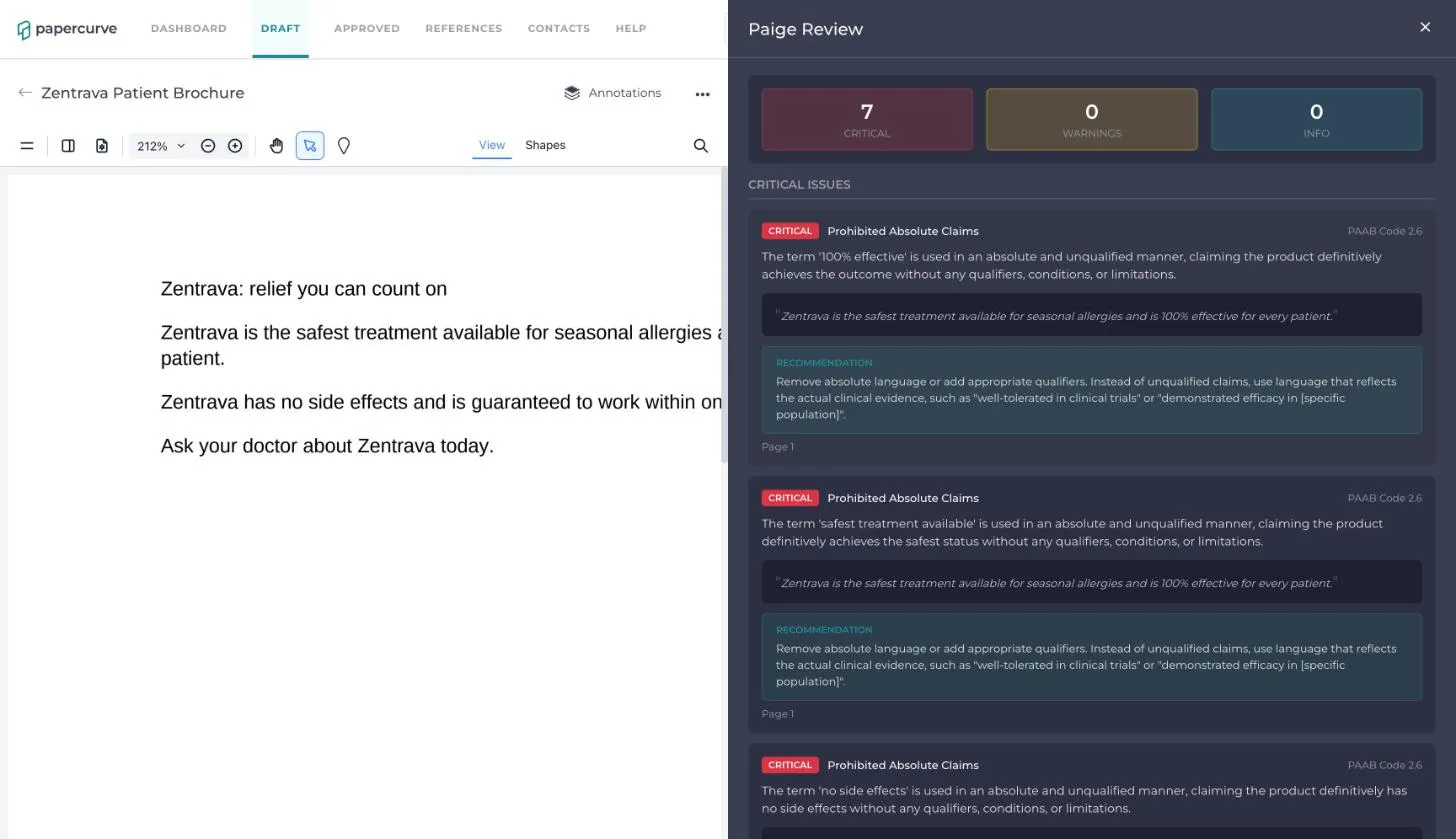
Paige checks your content against the rules your team reviews to and shows what it finds, marked on the page where each problem is, before the content goes to your reviewers. A rulebook can follow a published code, such as PAAB or FDA requirements, or it can be built around your own approval process.
Paige Review is switched on per library by our customer success team.
Read more: Paige Review
Reviewing content
- Every file type opens the same way. Word, PowerPoint, Excel and image files are prepared for the viewer after upload, and open by themselves as soon as they are ready. See Why Content Shows “Processing”.
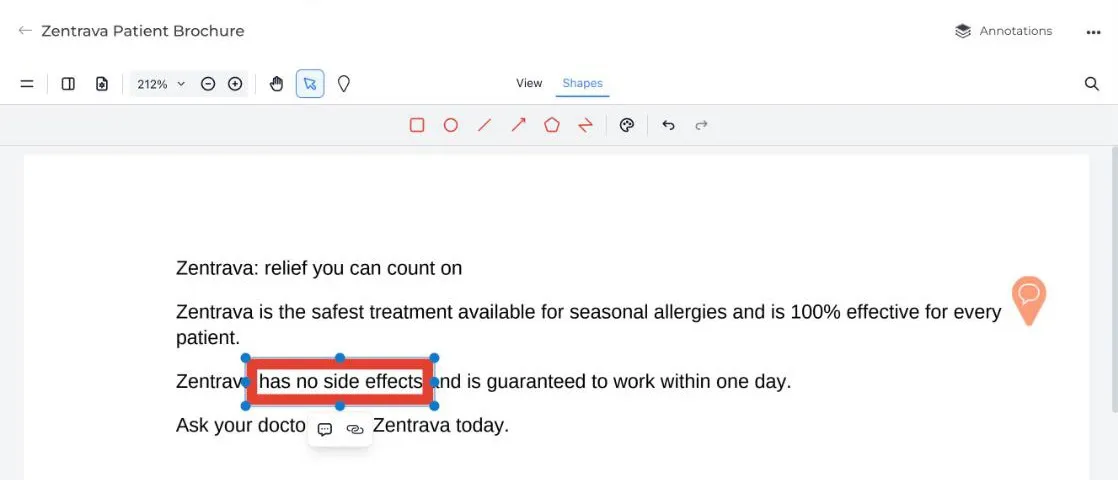
- Pins and shapes. Drop a pin or draw a shape on any spot, even where there is no text to highlight, and make it a comment or a reference. See Pins and Shapes.
Compare versions side by side
Compare now shows two versions next to each other. Changed words are marked in red and green, a list of changes lets you jump to each one, and the two sides scroll and zoom together. You can switch which versions are compared without leaving the page.
Compare also finds changes you can only see: a moved logo, a swapped image, a different number on a label. Overlay, Blink and Heatmap views give you three more ways to look at the differences.
Read more: Compare Versions and Compare Label and Packaging Artwork
Dashboard, search and Audit View
- Workspace search shows only the current version of each piece of content, and draft results follow the same access rules whichever filter you use.
- Audit View sorts every column, including Job Number and Approval Status, across all drafts.
- The dashboard updates by itself every 30 seconds. Your own actions, such as adding a favourite or replying to a comment, still show immediately.
Moving to Papercurve 3
Your libraries, content, versions, comments, references and approvals stay as they are. If you have a question about your workspace’s move to Papercurve 3, contact our customer success team.
Still have questions?
Chat
9am – 5pm Eastern Time, by clicking the icon in the bottom right corner of the screen.