


Paige Review for PAAB: Running a Review
In a library with Paige Review, you don’t have to start a review. Paige reviews every piece after it’s uploaded and every new version after that. You can also run a review yourself, for example after changing what Paige reviews the piece as, or after verifying a product card.
This is part of Paige Review for PAAB: The Complete Guide.
When Paige reviews a piece by itself
- When the piece is uploaded. The review starts once Papercurve has finished processing the file. See Why Content Shows “Processing”.
- When a new version is uploaded. Paige reviews the new version and compares it with the last one. See New Versions and Fixed Findings.
Paige reviews PDFs, and Word, PowerPoint, Excel and image files once Papercurve has turned them into a PDF. Pages that are images, such as a scanned page or an ad saved as a picture, are read with text recognition. Videos aren’t reviewed.
Opening Paige Review
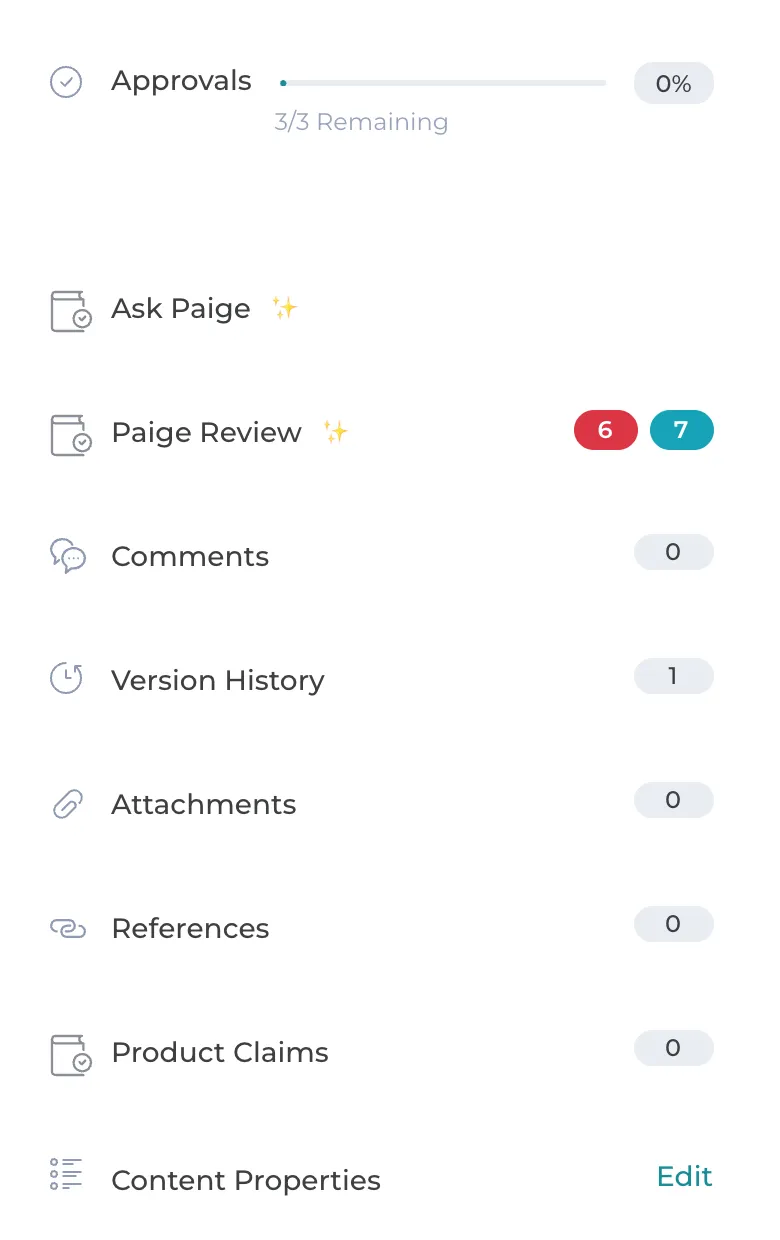
1. Open the piece. In the side panel, Paige Review shows the number of open findings on the latest review, in red for likely objections, amber for possible objections and blue for advisory. While a review is running it shows Processing….
2. Click Paige Review. The panel opens beside the piece.
At the top of the panel are:
- Review: which review you’re looking at. The latest is shown first.
- Run Paige Review, or Re-run once the piece has a review.
- Download, for the PDF report and the CSV. See Downloading the Report.
- Notices, for example when the piece profile changed since the review, or when checks are waiting for a verified Product Monograph.
Below them are four tabs:
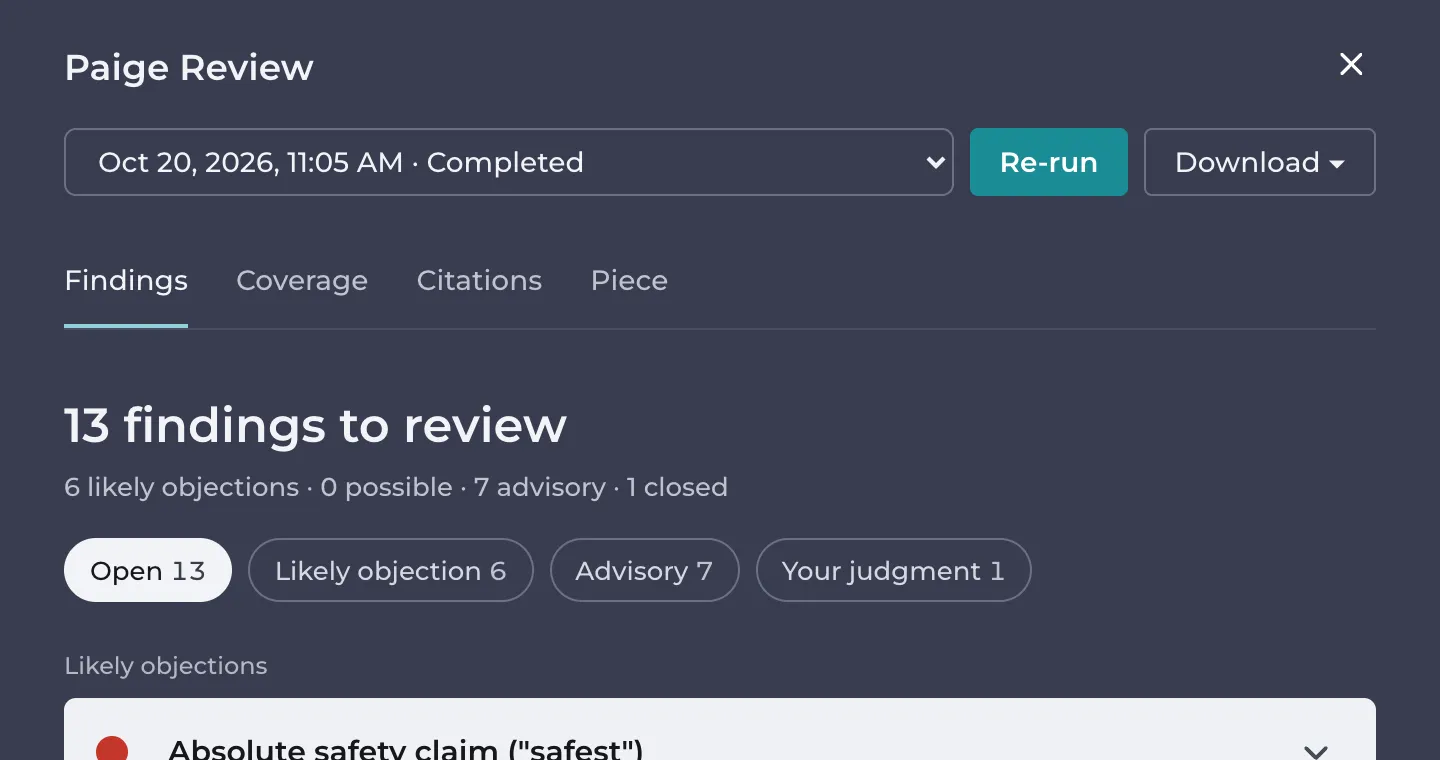
- Findings: what Paige found. See Reading Findings.
- Coverage: what Paige did with each provision of the Code. See The Coverage Tab.
- Citations: each cited claim and whether its source supports it. See Checking Claims and Citations.
- Piece: what Paige reviewed the piece as. See The Piece Tab.
Running or re-running a review
Click Run Paige Review or Re-run at the top of the panel. Anyone who can open the piece can do this.
Re-run when:
- you changed the Piece tab, for example the audience or the product. The panel says The piece profile changed since this review. Re-run to check the piece again.
- an admin verified the product’s card after the review ran. The panel says A product card was verified after this review.
- you chose a reference document for a missing citation, or uploaded a missing study.
- a review was only partly completed or failed.
Re-running reviews the same version again. Your decisions on its findings carry over. See Deciding on Findings.
A piece has one review running at a time, so the button is unavailable while one runs. It is also unavailable when the workspace has reached its monthly limit.
While a review runs
A review takes a few minutes, and the panel updates by itself. It shows where the review is:
- Waiting to start: the review is queued behind others.
- Reading the pages: Paige is reading the piece’s text, layout and images.
- Checking against the PAAB Code: Paige is running its checks.
You can close the panel or leave the piece. The review carries on.
When a review ends
- Completed: every check ran.
- Partly completed: some checks didn’t finish. The panel says Some checks didn’t finish: with what didn’t, followed by The other results stand. Everything shown is valid. Re-run to complete the rest.
- Review failed: the review couldn’t produce results, and the panel shows why. Re-run it. If it fails again, contact Papercurve support.
A review that stops responding for two hours is ended as failed with The review stopped responding and was abandoned; re-run the review.
Looking at an earlier review
Open the Review list at the top of the panel and choose an earlier review, listed by date and status.
An earlier review is read-only: This is an earlier review. Findings can only be changed on the latest one. It has no download.
Reviews made before the current Paige Review say Reviewed before the current Paige Review: no coverage or report. They show only their findings and the piece.
Good to know
- Paige Review only shows on the current version. Open the current version to see its review.
- When the workspace reaches its monthly limit, new reviews pause, and a piece uploaded meanwhile isn’t reviewed. When reviews resume, open it and click Run Paige Review. See Paige Review for PAAB: Troubleshooting.
Next: The Piece Tab
Still have questions?
Chat
9am – 5pm Eastern Time, by clicking the icon in the bottom right corner of the screen.